
How to add photos to your gallery
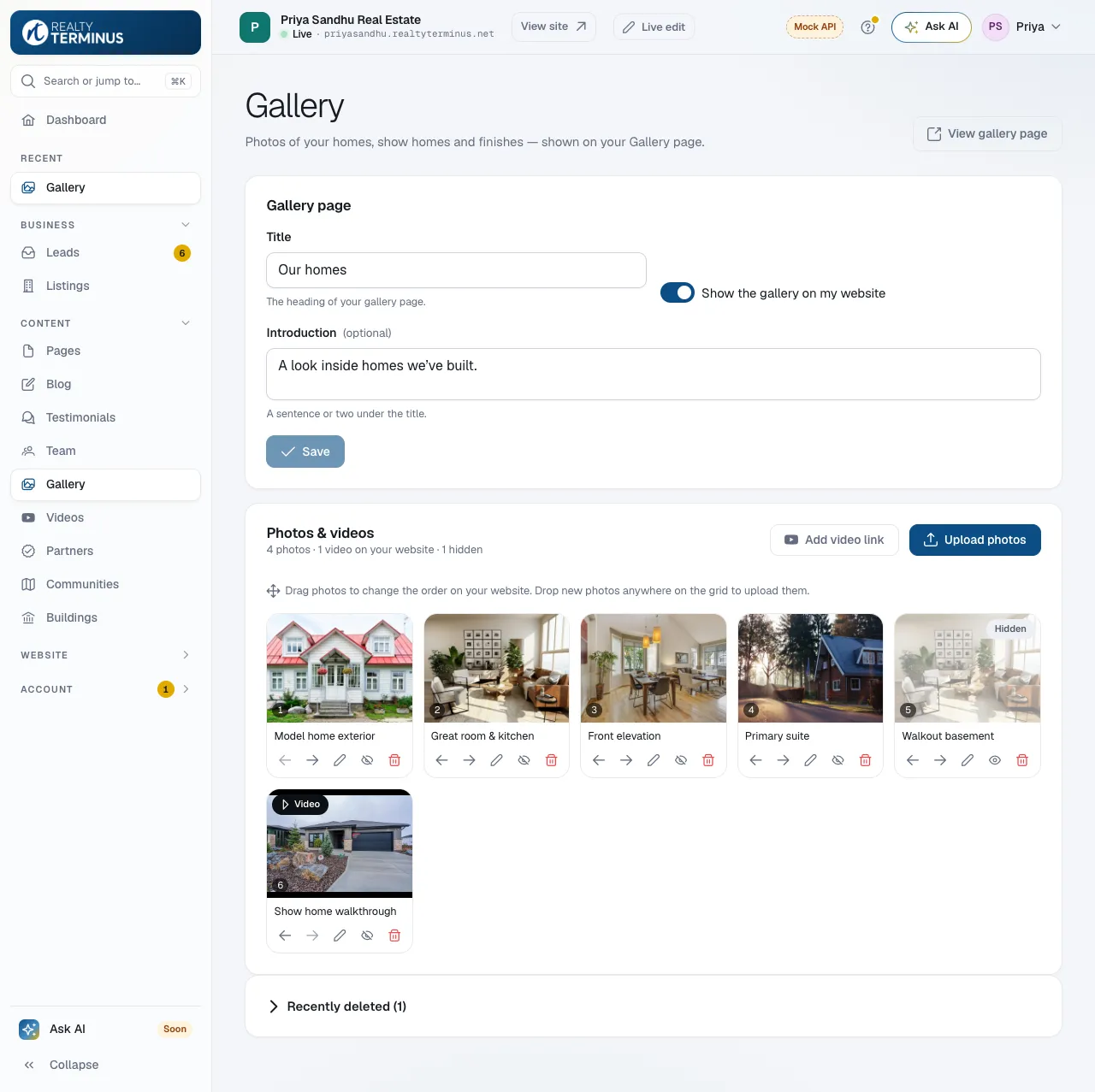
In your RealtyTerminus admin go to Content, then Gallery, click Upload photos, choose your photos, add captions with the pencil icon and drag them into order. They show on your website’s Gallery page.
Your gallery is a page of photos — finished homes, show homes, interiors and details — that visitors can open full-screen. Builder websites on the Launch template also show your first photos on the home page.
Steps
Upload your photos
Click Upload photos and choose one or more photos (JPG, PNG, WebP or GIF, up to 10 MB each). You can also drop photos onto the page. They’re added at the end of your gallery.
Add captions
Click the pencil icon under a photo, type a Caption (for example “Great room & kitchen”) and click Save. Captions show when visitors hover or open a photo, and help search engines.
Put them in order
Drag photos to a new place, or use the left and right arrows under each photo. The order is saved straight away.
Name your gallery
At the top, set the Title and an optional Introduction, keep Show the gallery on my website on and click Save. If your menu has no Gallery link yet (new builder websites have one), add a Photo gallery link in Website → Navigation.
Good to know
- Your website has one gallery. Use captions to say which home or community each photo shows.
- Turning off Show the gallery on my website keeps your photos but shows an empty gallery page — remove the menu link too.
- Photos of a listing belong in the listing itself: see How to add listing photos.
Questions
Can I add videos to the gallery?
Yes. Click Add video link and paste a YouTube or Vimeo link; videos show under the photos. For a page of all your YouTube videos, see How to add YouTube videos to your website.
How do I take a photo off my website without deleting it?
Click the eye icon under it to hide it. Click it again to show it.
I deleted a photo by mistake. Can I get it back?
Yes. Open Recently deleted at the bottom of the Gallery page and click Restore. The photo goes back to the end of your gallery.
How many photos can I add?
Up to 500 photos and videos, on every plan.