
How to edit your website menu
Go to Website, then Navigation, use Add item to add links, drag items to reorder or nest them, hide or remove items, then click Save.
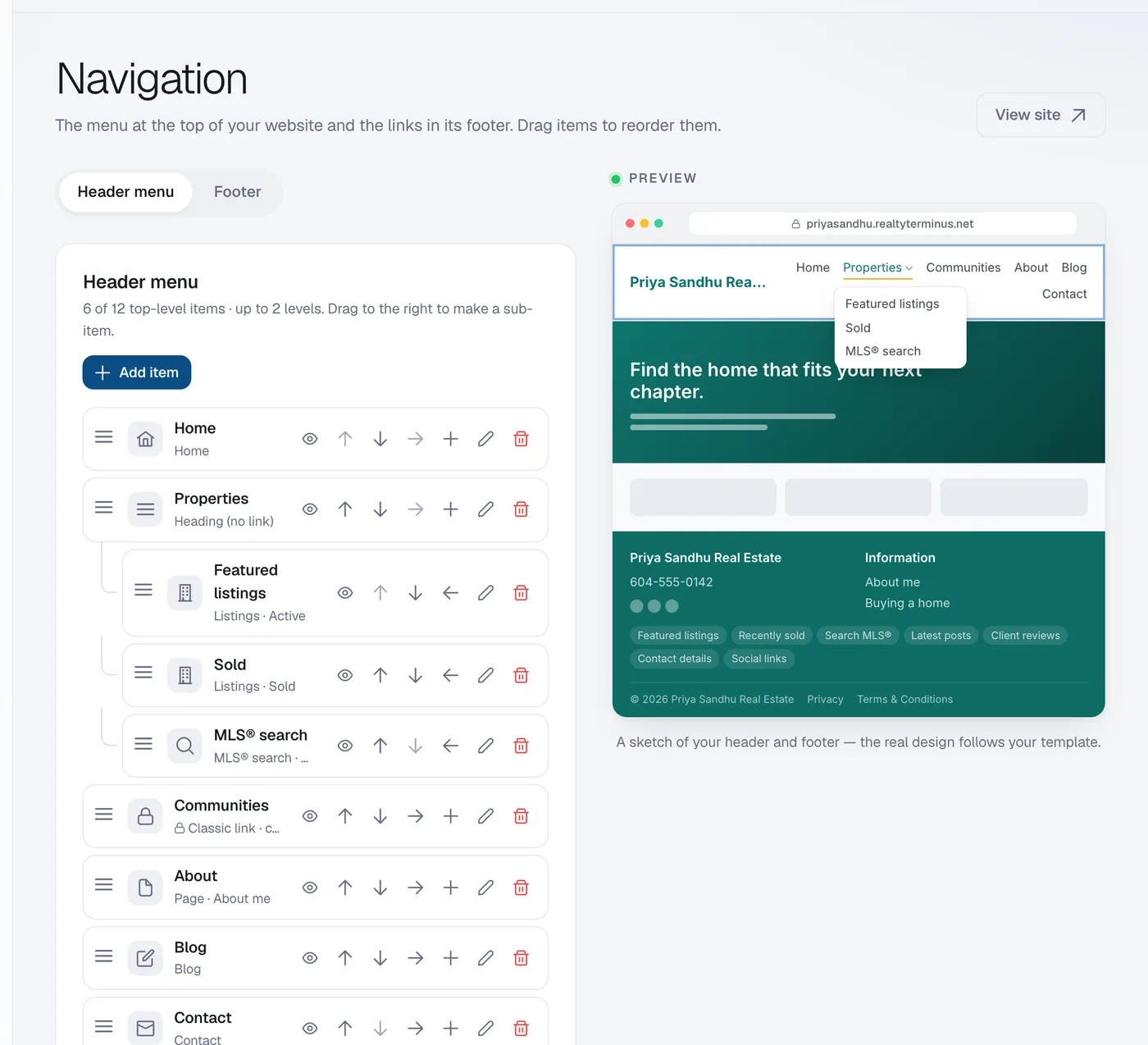
Navigation controls the menu at the top of your website. You can have up to 12 top-level items and one level of sub-menus. A sketch of your header next to the list updates as you work.
Steps
Open Navigation
Open Website in the menu and click Navigation. The Header menu is shown first.
Add an item
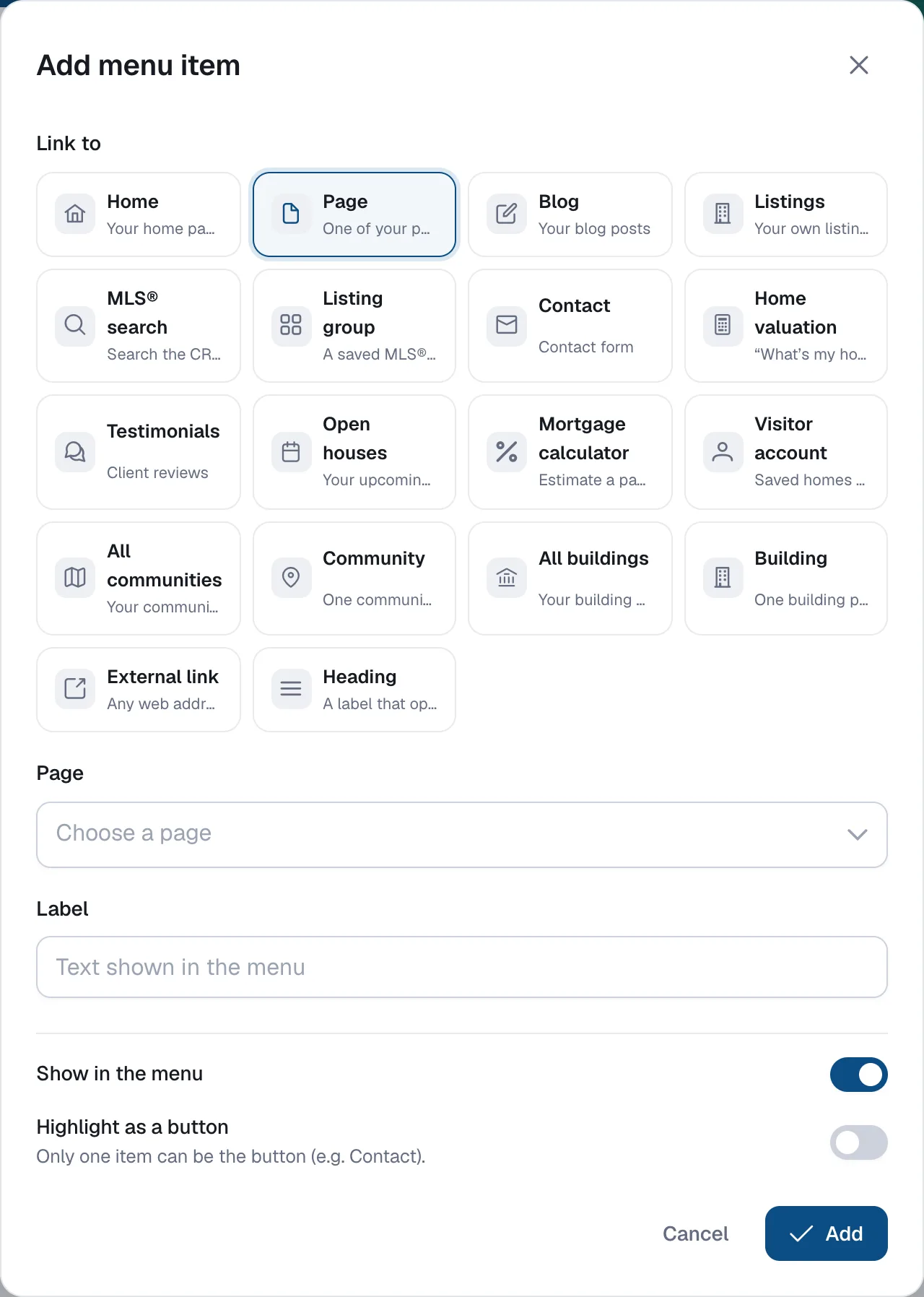
Click Add item, choose what to Link to (for example Page, Listings or Contact), pick the target, check the Label and click Add.
Reorder and nest
Drag items up or down, or use the arrows. Drag an item to the right (or use the indent button) to make it a sub-item of the item above.
Hide, edit or remove
Use the eye button to hide an item without deleting it, the pencil to edit it, and the bin to remove it. In an item’s settings, Highlight as a button turns one top-level item (e.g. Contact) into a button.
Save
Click Save at the bottom. Discard throws away unsaved changes.