
How to add a page to your website
Go to Pages, click New page, enter a title and content, check the web address, then click Publish; add it to your menu under Website, then Navigation.
Pages are the fixed parts of your website, like About, Buying or Selling. Your website starts with a set of starter pages you can edit.
Steps
Start a new page
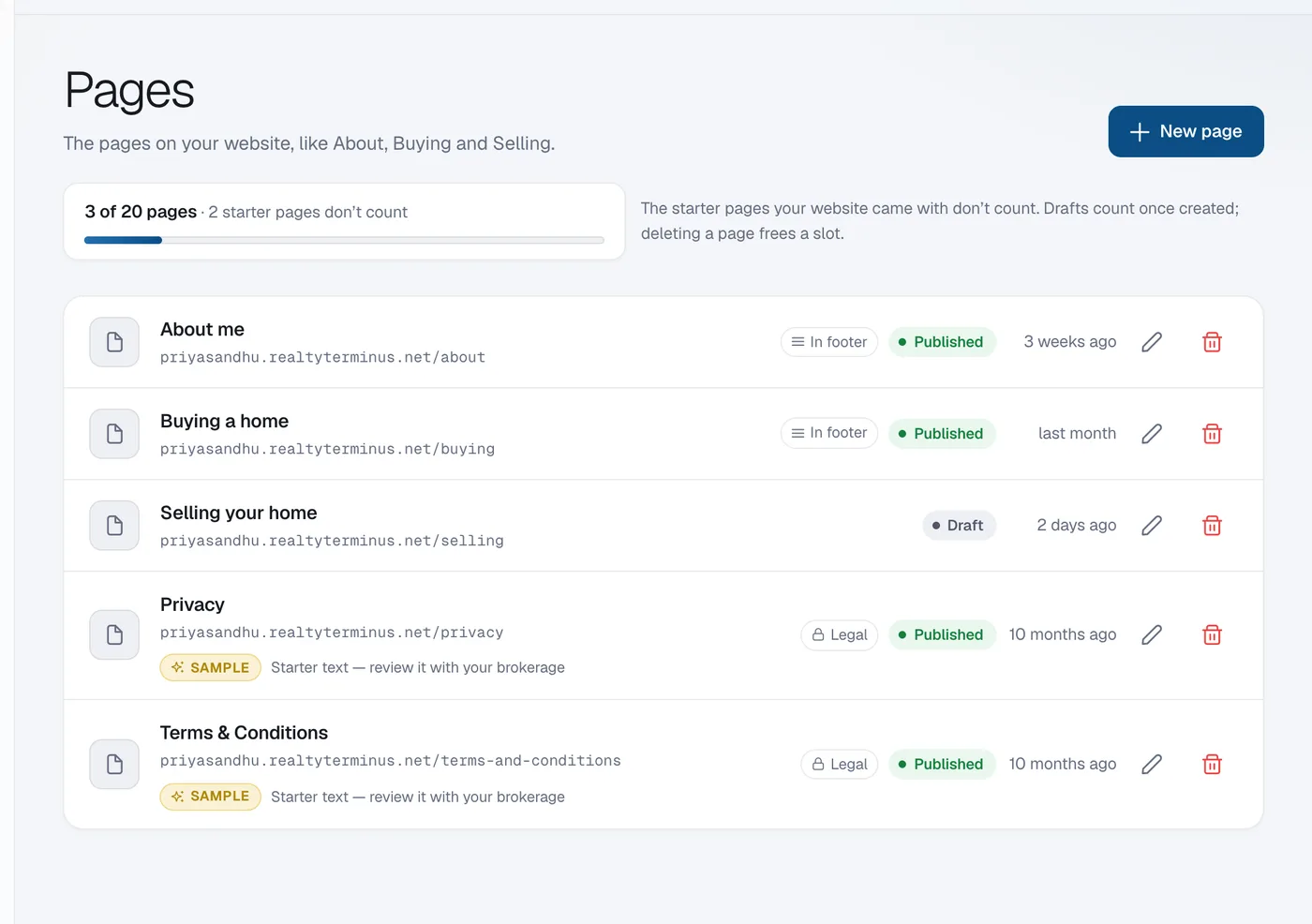
Click Pages in the menu (under Content), then New page.
Write the page
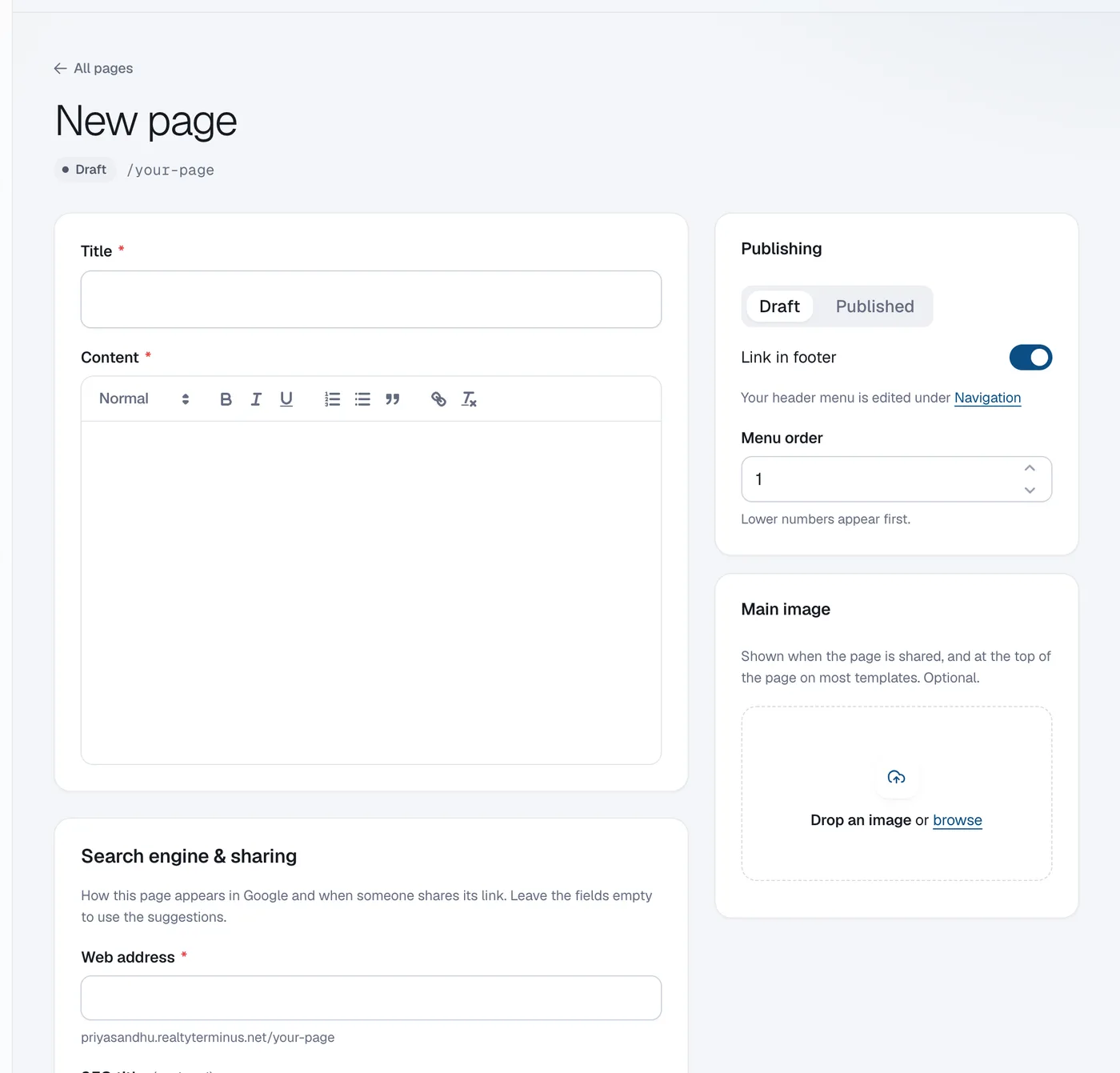
Enter a Title and write the Content. Use the toolbar for headings, bold, lists, links and images. Add a Main image if you like.
Check the web address and Google text
The Web address is made from the title; change it if you want. Under Search engine & sharing you can set how the page looks in Google, or leave the fields empty to use the suggestions.
Publish
Click Publish. Or click Save draft to finish later; drafts aren’t shown on your website.
Add it to your menu
Go to Website → Navigation, click Add item, choose Page and pick your new page. See How to edit your website menu.
Questions
How many pages can I have?
It depends on your plan. The starter pages your website came with don’t count; drafts count once created and deleting a page frees a slot. The More Pages add-on raises the limit to 50 pages (fair usage).
Can I edit the page right on my website?
Yes, with Live edit: open the page in the admin and click Live edit. See How to edit your website with Live edit.