
How to add a community page
With the Communities add-on, go to Communities, click New community, add the name, description, highlights, cities and map pin, then click Publish.
Community pages bring local search traffic to your website. Each page has a photo, description, highlights, a map pin, an optional video and the listings in that community. On the MLS plan, MLS® listings in the cities you choose show too.
Steps
Add the Communities add-on
On a paid plan, go to Account → Billing → Add-ons and add Communities. See How to add an add-on.
Create the page
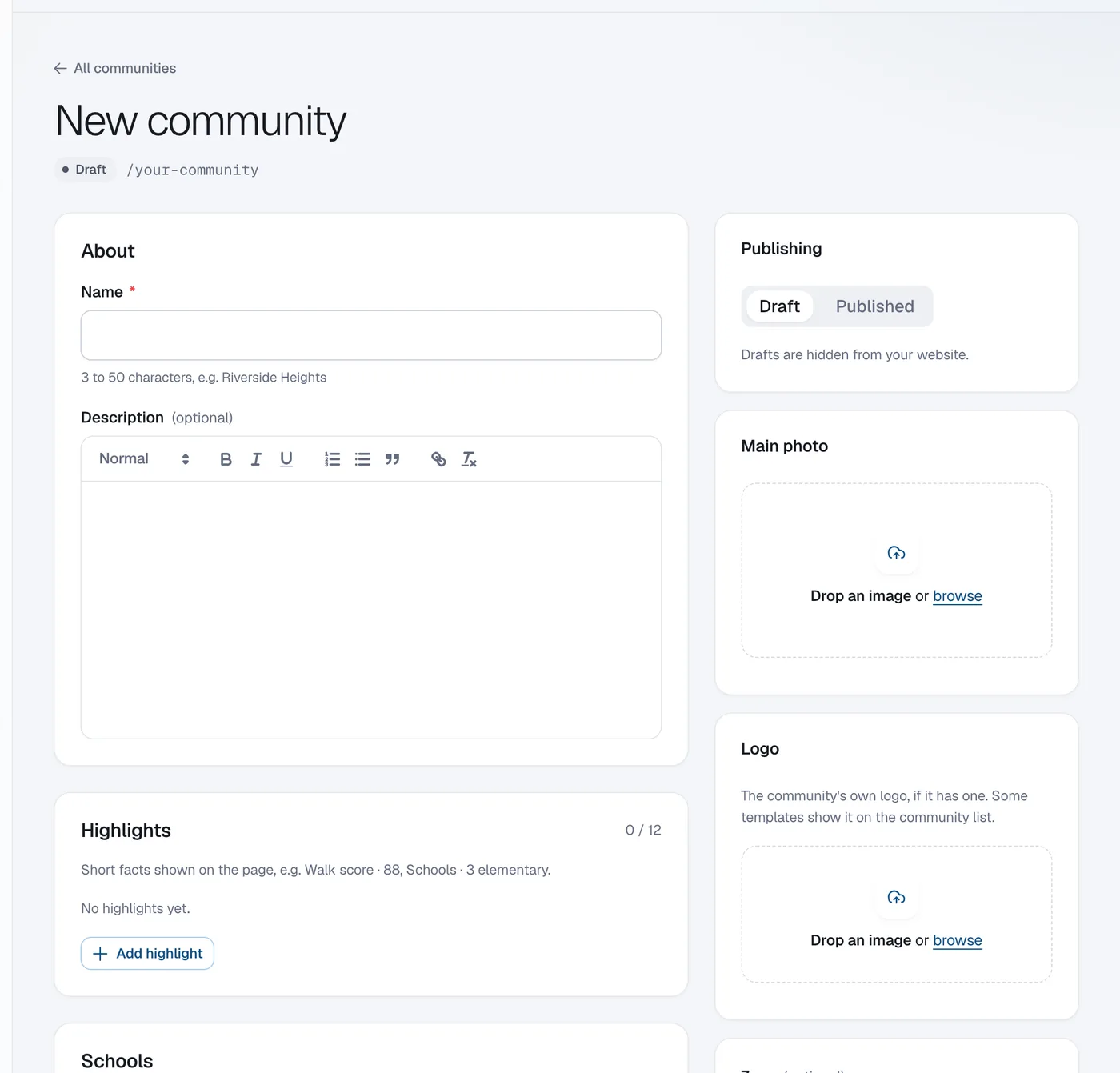
Click Communities in the menu (under Content), then New community. Enter the Name (e.g. Riverside Heights) and a Description.
Add highlights and schools
Under Highlights click Add highlight for short facts like Walk score · 88. Use Schools for schools and catchments.
Choose cities and the map pin
Under Location & listings add the Cities whose MLS® listings should show, and set the Map pin.
Publish
Add a Main photo, then click Publish. Save draft keeps it hidden from your website.
Link your own listings
Open a listing and pick its Community under Address & map. It shows on that community page.
Questions
What happens if I cancel the add-on?
Your community pages stay online.