
How to add a client testimonial
Go to Testimonials, click Add testimonial, enter the client name, their words and a star rating, make sure Show on website is on, and click Save.
Kind words from past clients are one of the most-read parts of a realtor website.
Steps
Open Testimonials
Click Testimonials in the menu (under Content) and click Add testimonial.
Enter the testimonial
Fill in Client name, Location (optional, e.g. Burnaby), the Testimonial text and the Rating. Add a Video link to a YouTube or Vimeo video if you have one.
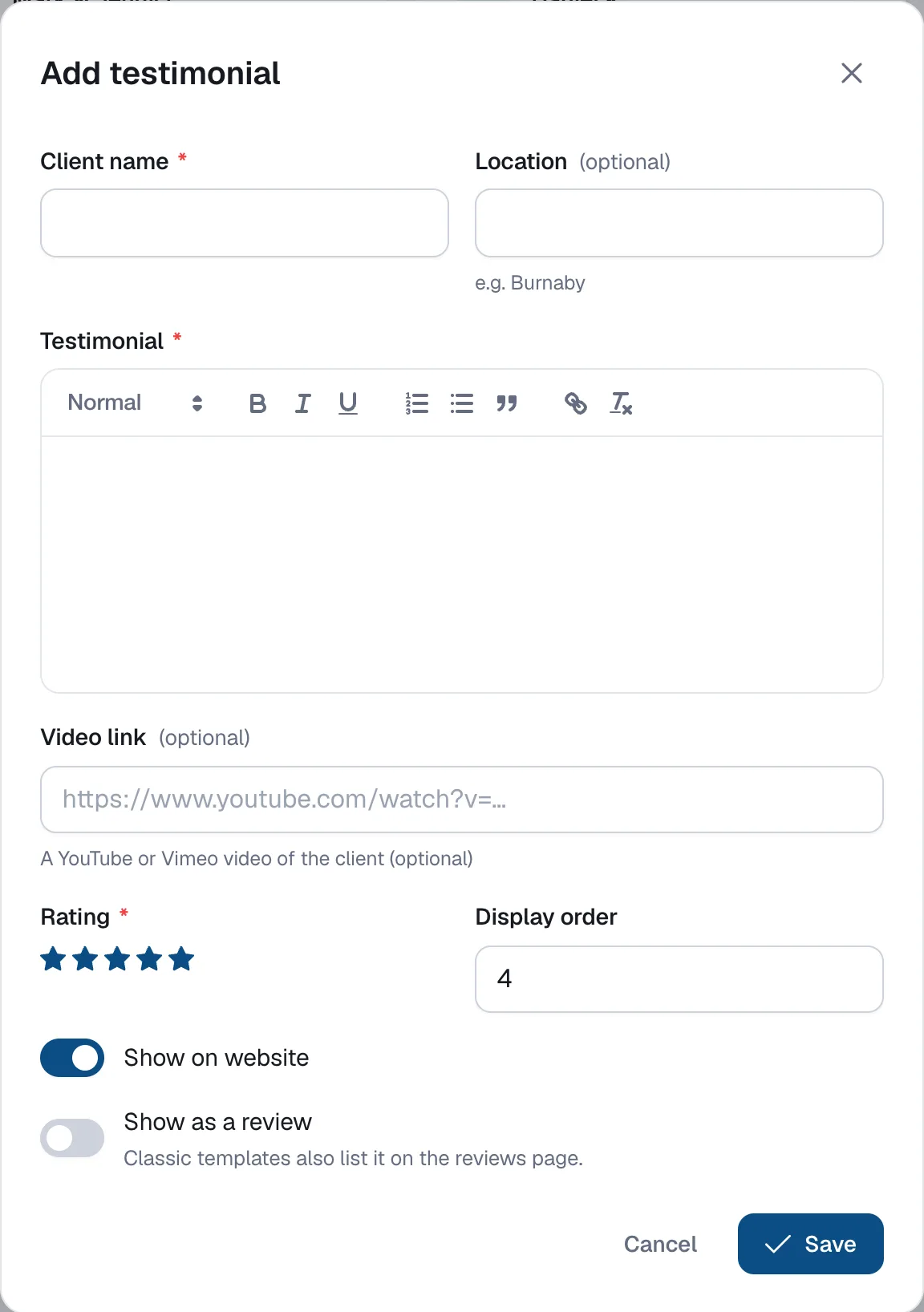
Choose where it shows
Keep Show on website on. Set the Display order to control where it appears.
Save
Click Save. The card shows On website (or Hidden if it’s switched off).
Questions
Is the sample testimonial shown on my website?
No, the sample is never shown. Edit it into a real one or delete it.
Can I show a rating badge from Google reviews?
Some templates show a reviews badge. Set it under Website → Branding → Reviews badge, using only your real rating and review count.