
How to finish the Next steps checklist on your dashboard
The Next steps checklist on your dashboard lists the few things that make your website ready for clients; click each item to go straight to the page where you do it.
Right after setup, your Dashboard shows a Next steps panel with a progress ring. Each item ticks itself off when it’s done, and the panel disappears once everything is finished.
Steps
Click an item
Click any item to open the right page, for example Replace the sample listing with your own opens Listings and Add your headshot opens Branding.
Do the task and come back
Save your change. Back on the dashboard the item shows a tick and the ring counts it as done.
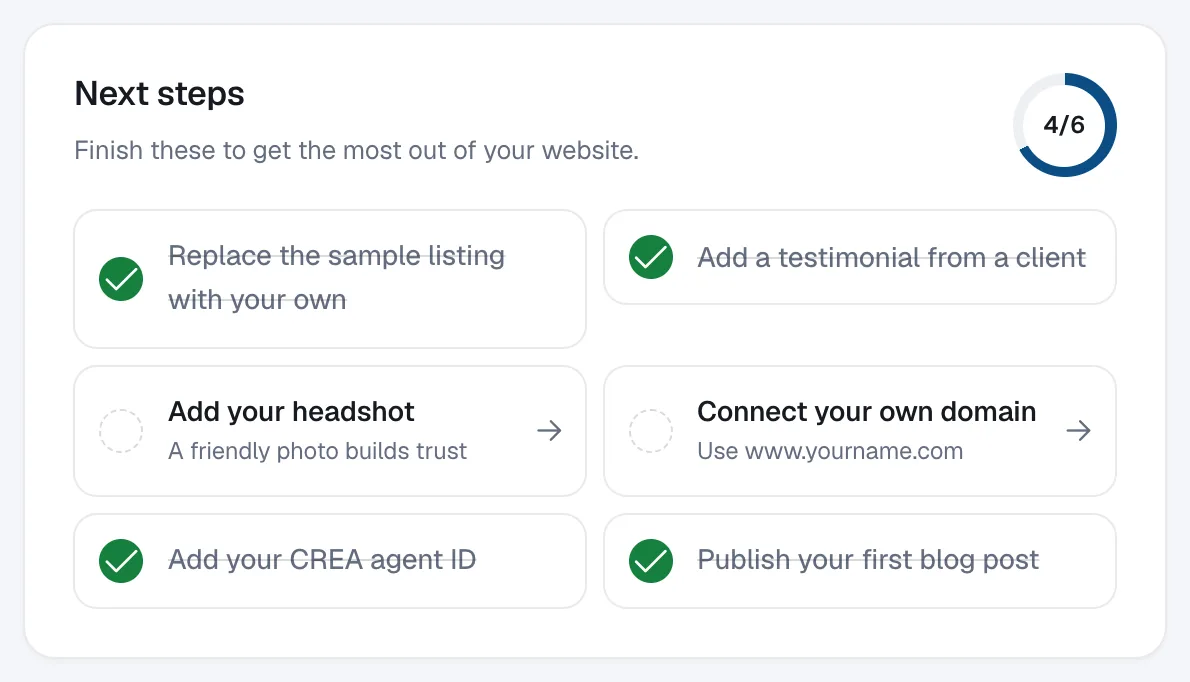
What’s on the list
Which items you see depends on your account and plan:
- Replace the sample listing with your own
- Add a testimonial from a client
- Add your headshot (REALTOR® accounts) or Add your company logo (builder accounts)
- Connect your own domain (paid plans)
- Add your CREA agent ID (MLS plan)
- Publish your first blog post
- Add your brokerage name (required in Canada), if it’s missing