
How to add a listing to your website
Go to Listings, click New listing, fill in the headline, price, type, bedrooms, bathrooms and address, add photos, then click Publish listing.
Your own listings show on your website with photos and an inquiry form, on every plan and in any country. On the MLS plan they show alongside your MLS® listings, which arrive on their own.
Steps
Start a new listing
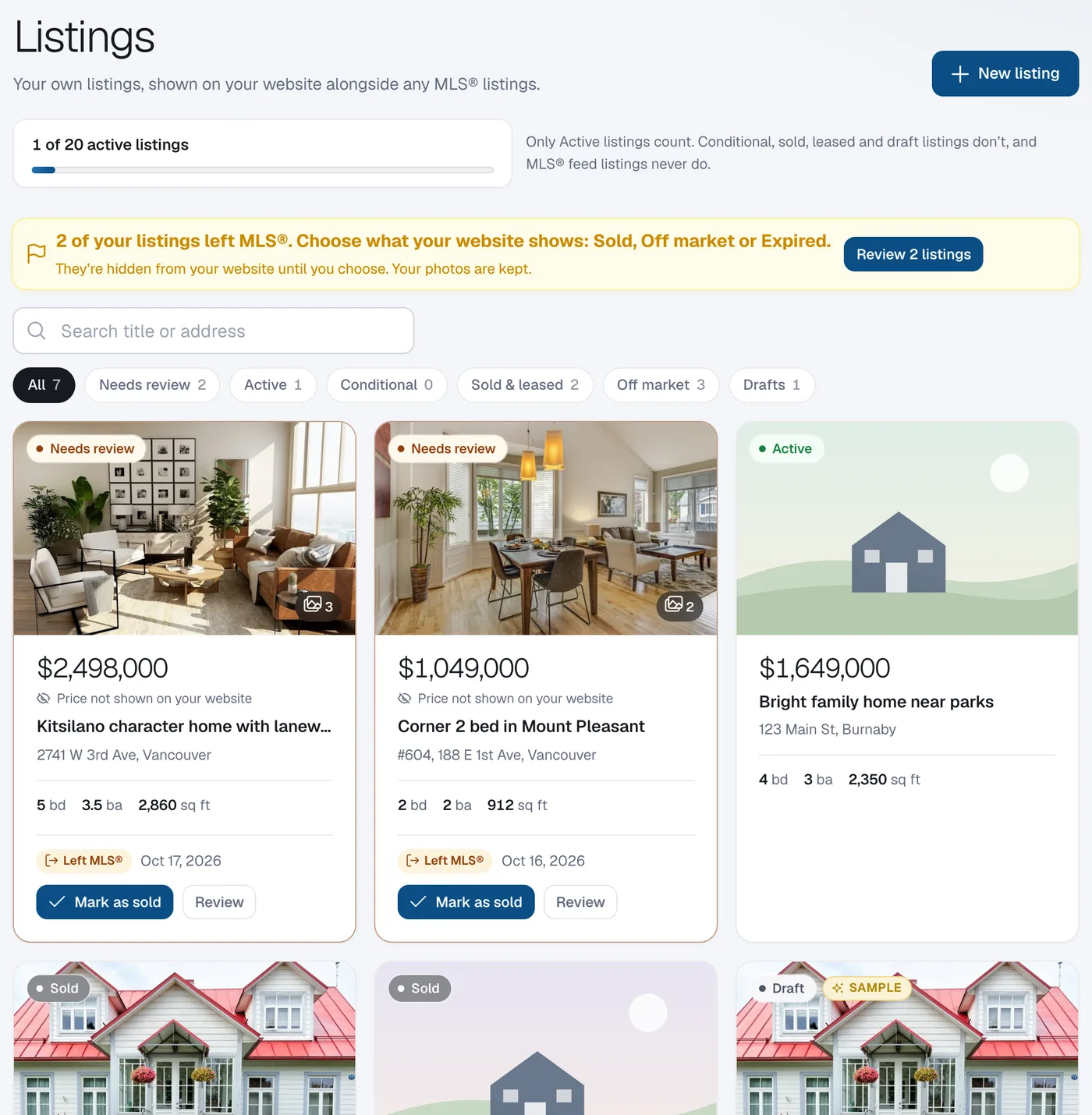
Click Listings in the menu, then New listing. You can also click New listing on your dashboard.
Fill in the details
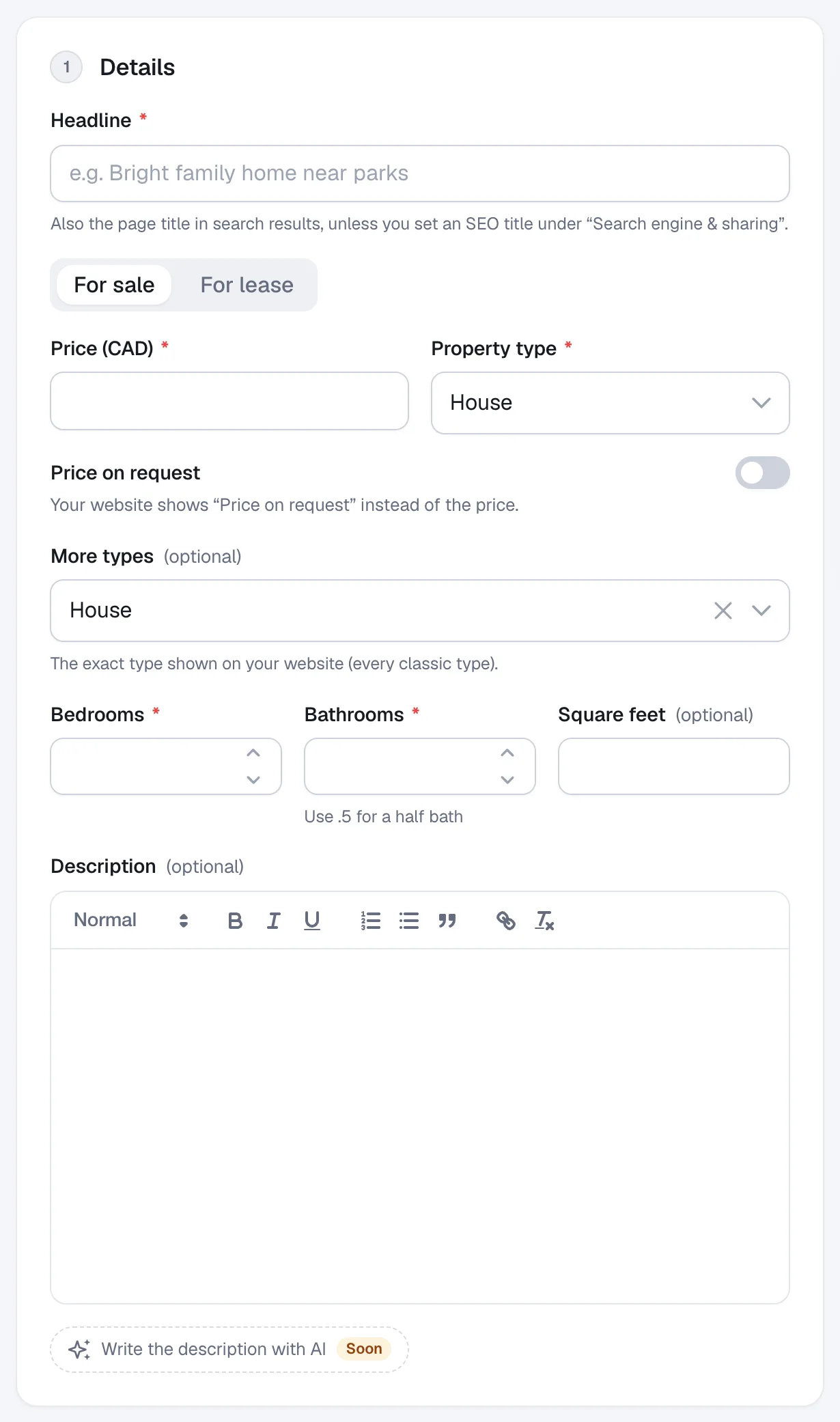
Under Details enter a Headline, choose For sale or For lease, then the Price, Property type, Bedrooms and Bathrooms (use .5 for a half bath). Square feet and Description are optional.
Add the address
Under Address & map enter the Street address, Unit if any, City and postal code. Check the Map pin and drag it if needed.
Add photos
Under Photos click Add photos. The first photo is the main photo. See How to add and reorder listing photos.
Choose the status and publish
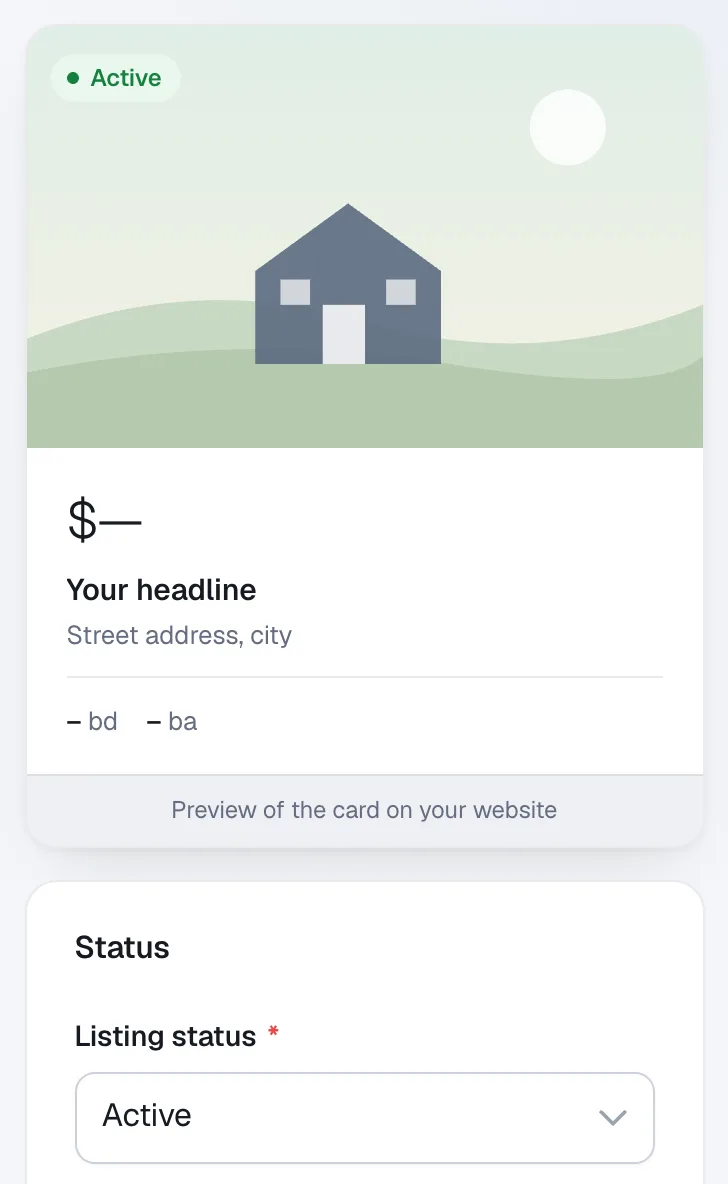
Under Status pick the Listing status (usually Active). Click Preview on website to check it, then Publish listing. Choose Save as draft to finish later.
Good to know
- More details and Labels & highlights let you add features, a corner ribbon and a short banner on the listing card.
- Search engine & sharing sets the listing’s Google title and description; empty fields use a suggestion.
- On the MLS plan, add your exclusives, pocket listings and past sales here; your MLS® listings arrive automatically.
Questions
How many listings can I add?
Only Active listings count toward your plan’s limit. Conditional, sold, leased and draft listings don’t, and MLS® feed listings never do. The bar on the Listings page shows how many you’re using. The More Listings add-on raises the limit to 100 active listings (fair usage).
Which statuses show on my website?
Active, Conditional, Sold, Assignment and Private (link only) listings have a page on your website. Draft, Leased, Off market and Expired listings are hidden.