
How to mark a listing as sold
For your own listing, set Listing status to Sold and save; for an MLS® listing that left the feed, click Mark as sold on its card in Listings. Sold prices are never shown.
A Sold listing shows on your website with a Sold ribbon and on your Sold page, without a price.
Steps
Your own listing: change the status
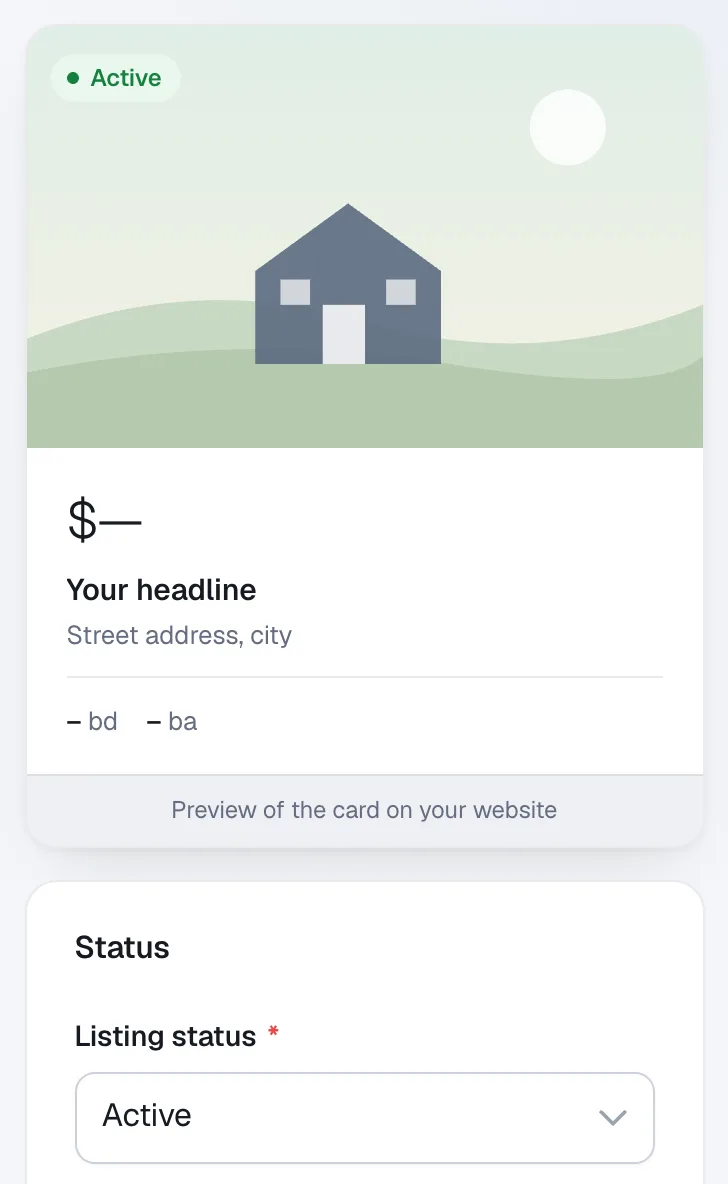
Click Listings, open the listing, set Listing status to Sold and click Save changes. The Sold date is filled in for you.
MLS® listing that left MLS®: open Needs review
When one of your MLS® listings leaves the feed, Listings shows a Needs review note. Click the Review listing button in that note (it says Review 2 listings when there are two), or the Needs review chip.
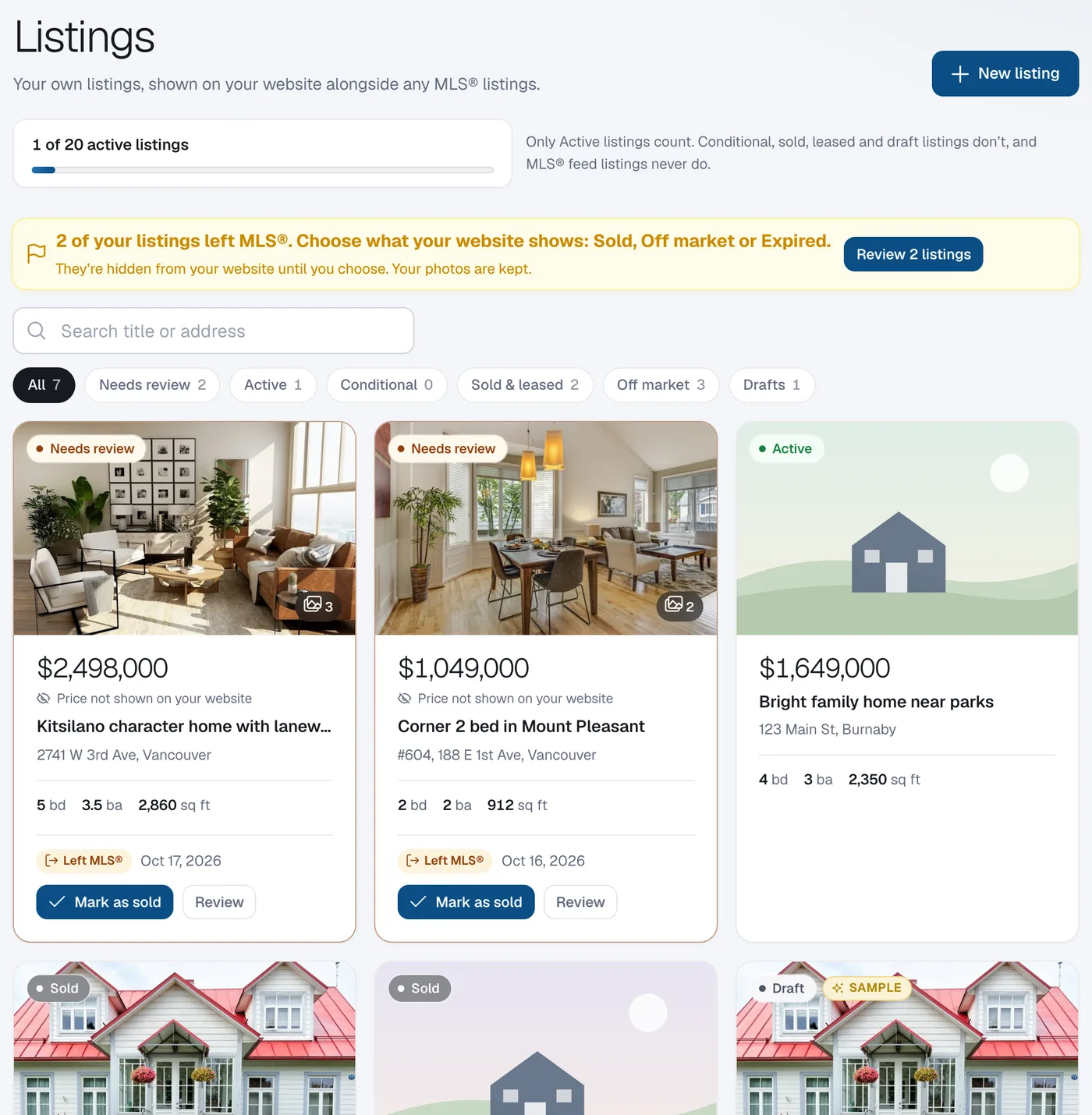
Click Mark as sold
On the listing’s card click Mark as sold, optionally set the Sold date (it defaults to today) and click Mark as sold again. Not sold? Click Review and choose Off market or Expired instead.
Questions
Is the sold price shown?
No. Sold prices are never shown on your website — sold listings show a “Sold” tag instead.
Do I keep the photos?
Yes. The photos are kept with the listing after it leaves MLS®.
Does a sold listing count toward my limit?
No. Only Active listings count.