
Which MLS® listings show on my website?
On the MLS plan your own MLS® listings appear automatically once your CREA agent ID is verified, and you can add MLS® search pages to your menu; listings stay up to date on their own.
Once your CREA agent ID is verified, your MLS® listings and their photos arrive on your website and stay up to date. You don’t retype anything.
Steps
See your listings in the admin
Click Listings. The dashboard’s Active listings card shows how many MLS® listings are synced. MLS® listings are synced from CREA DDF® and can’t be edited in the admin.
Add MLS® search to your menu
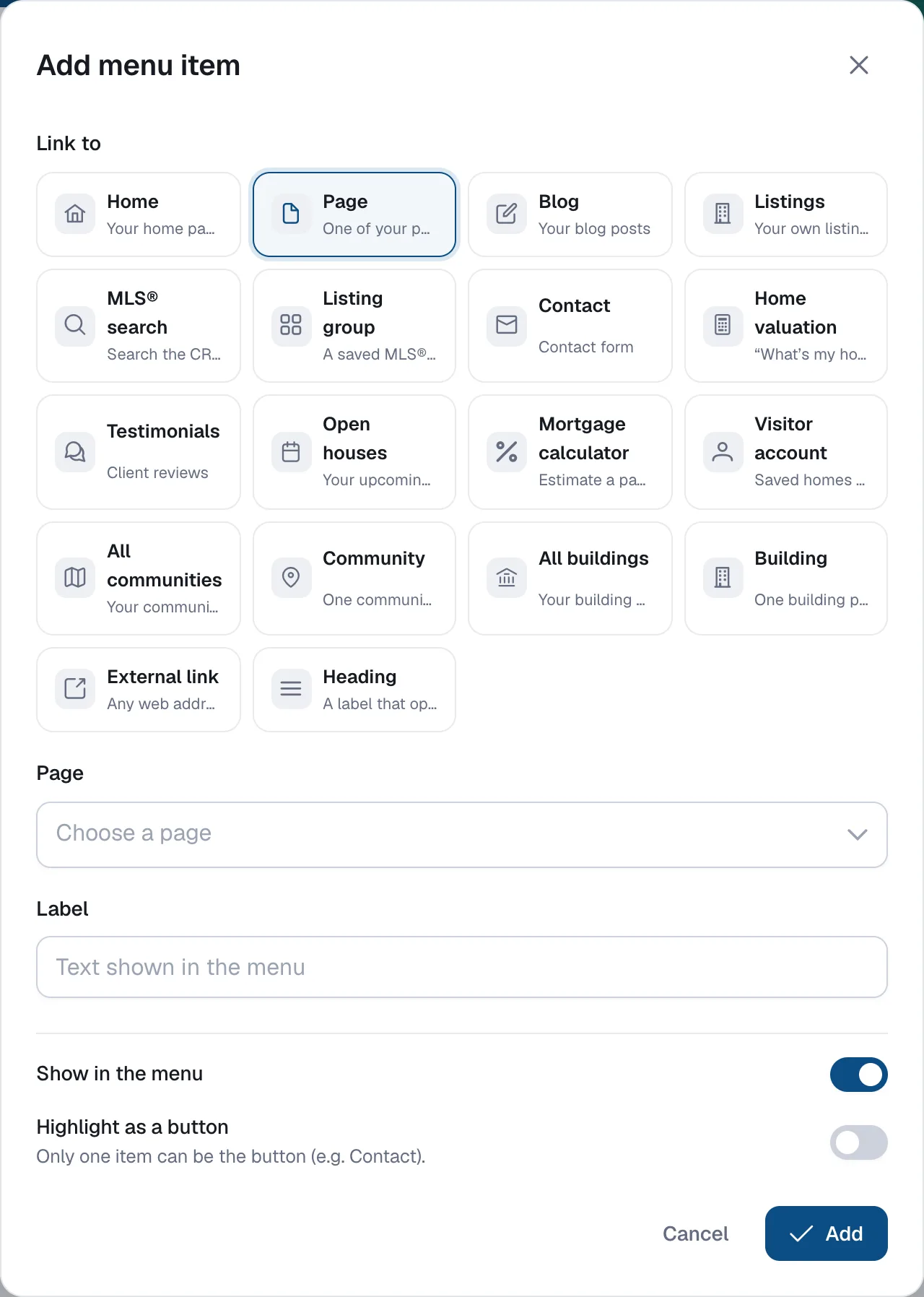
Go to Website → Navigation, click Add item and choose MLS® search. Pick Map search or List. Visitors can then search MLS® listings on your website.
Add a listings disclaimer (optional)
In Website → Branding, the Listings disclaimer panel adds your board’s disclaimer text and MLS® reciprocity logo to every page and listing page.
When a listing leaves MLS®
Listings shows it as Needs review. Choose Mark as sold, Off market or Expired. See How to mark a listing as sold.
Questions
Do community pages show MLS® listings?
Yes, with the Communities add-on: MLS® listings in the cities you choose for a community show on its page.
Can I add listings that aren’t on MLS®?
Yes. Add exclusives, pocket listings or past sales under Listings → New listing.