
How to add and reorder listing photos
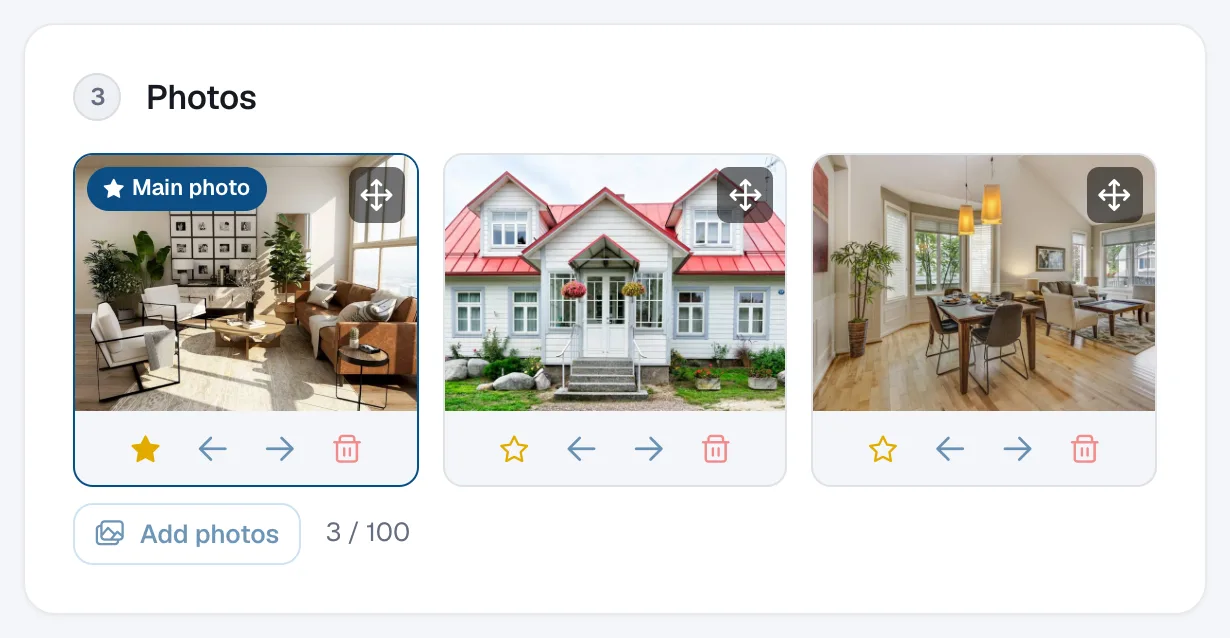
In the listing’s Photos section click Add photos, then drag photos or use the arrows to reorder them and the star to choose the main photo.
Each listing can have up to 100 photos. The first one is the main photo: listing cards and share previews use it.
Steps
Open the listing
Click Listings in the menu and click the listing (or New listing).
Upload photos
In section 3 Photos click Add photos and choose one or more JPG, PNG or WebP files (up to 10 MB each).
Choose the main photo
Click the star under a photo to make it the main photo.
Reorder or remove
Drag photos into the order you want, or use the left and right arrows. Click the bin icon to remove a photo.
Save
Click Save changes (or Publish listing for a new one).