
How to write and publish a blog post
Go to Blog, click New post, add a title, excerpt, content and featured image, then click Publish; drafts never count toward your monthly limit.
Regular posts — market updates, neighbourhood guides, buying and selling tips — build trust and help your website show up in local search.
Steps
Start a new post
Click Blog in the menu, then New post. You can also click Write a post on your dashboard.
Write it
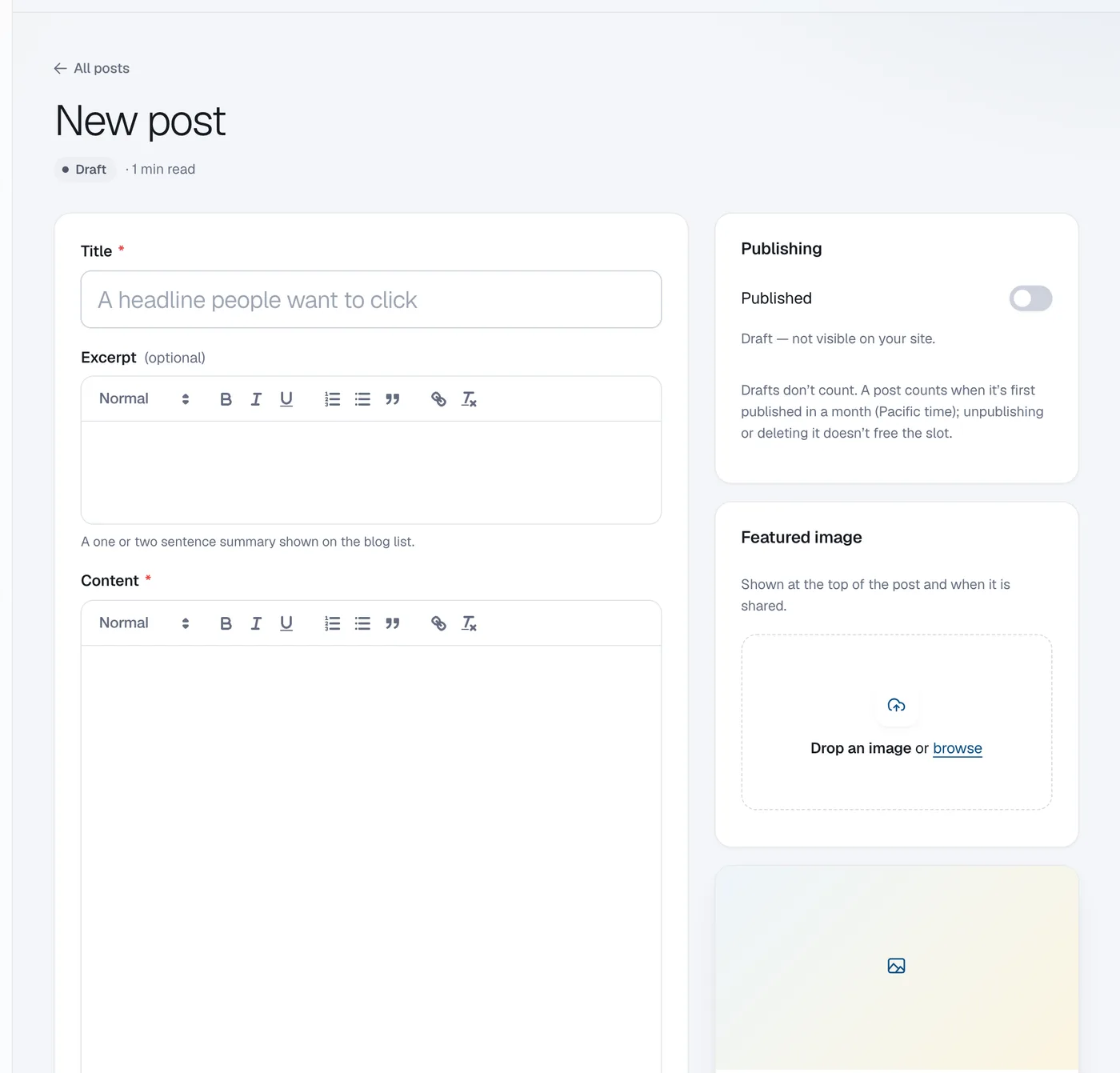
Enter the Title, a short Excerpt (shown on the blog list) and the Content. Add a Featured image for the top of the post and for shares.
Check the web address and Google text
The Web address is made from the title. Search engine & sharing sets how the post appears in Google; leave it empty to use the suggestions.
Publish
Click Publish, or Save draft to keep working on it.
Questions
How many posts can I publish?
Your plan includes a number of published posts per month. Drafts don’t count. A post counts when it’s first published in a month (Pacific time); unpublishing or deleting it doesn’t free the slot. The More Blog Posts add-on raises it to 30 posts a month (fair usage).
Can I unpublish a post?
Yes. Open it and click Unpublish.