
How to hide a team member from your website
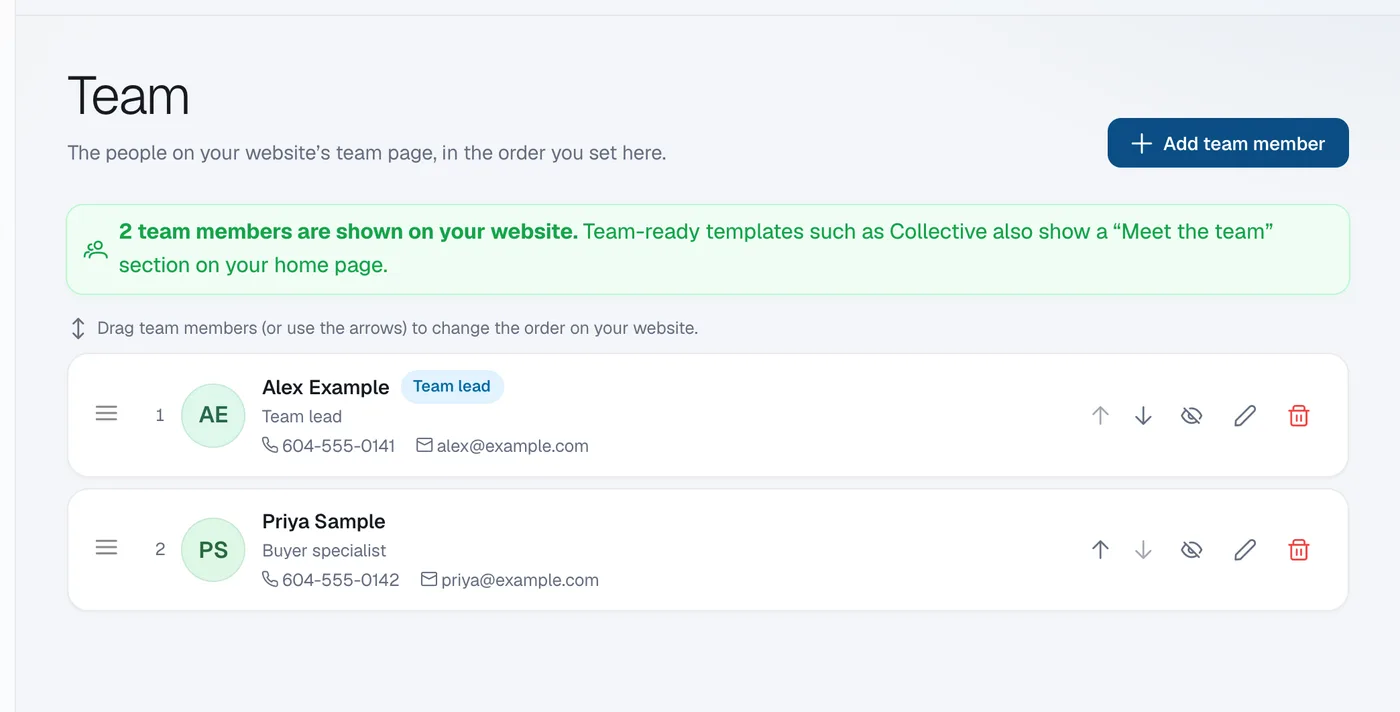
On the Team page click the eye icon on the member’s row (Hide from website), or switch off Show on website in their details; their profile is kept so you can show it again.
Hiding is useful when someone is on leave or has just joined and their profile isn’t ready. Hidden members stay in your list with a Hidden tag.
Steps
Open Team
Open Content in the menu and click Team.
Hide the member
Click the eye icon on their row (Hide from website). Or click the pencil icon, switch off Show on website and click Save.
Show them again later
Click the eye icon again (Show on website).
Questions
What’s the difference between hiding and deleting?
Hiding keeps the profile, photo and bio so you can show it again. Deleting (the bin icon) removes the member for good.