
How to add a team member
In your RealtyTerminus admin go to Content, then Team, click Add team member, enter their name, role, contact details, photo and bio, keep Show on website on, and click Save.
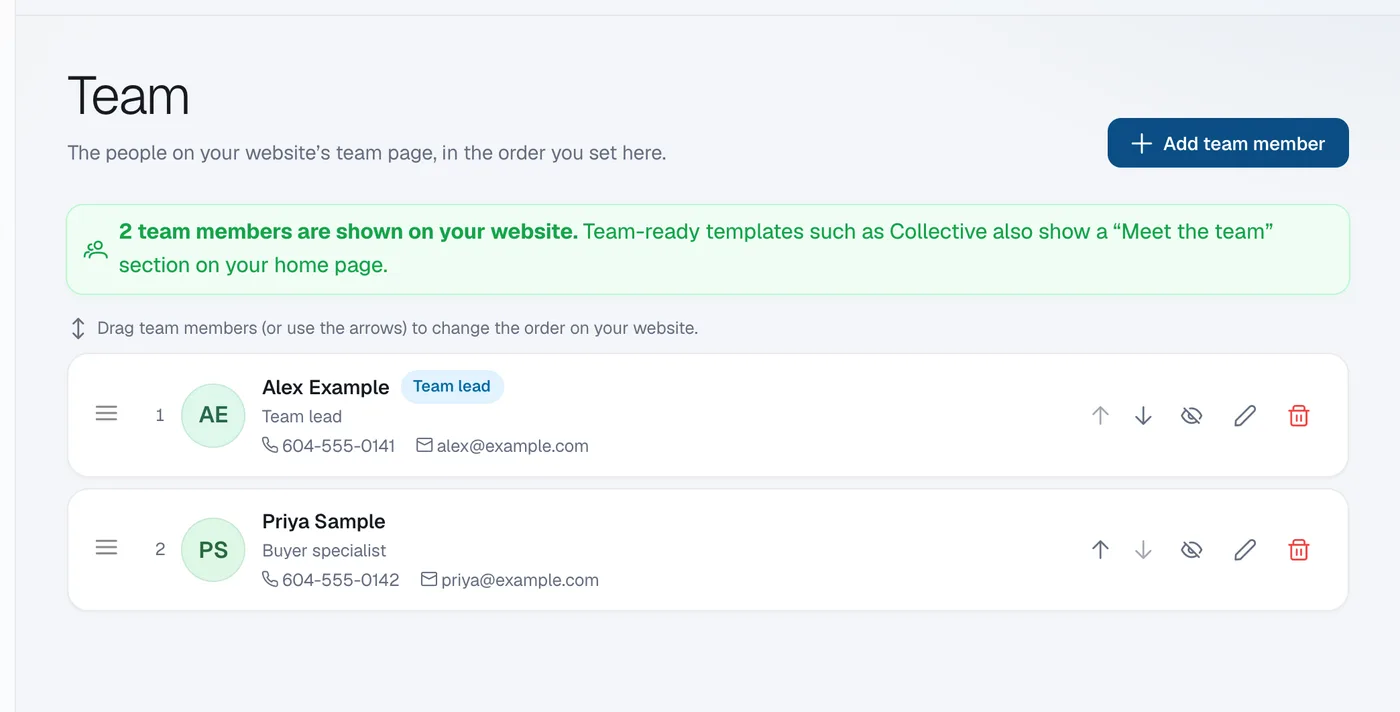
Each team member gets a card on your website’s team page and their own profile page. Team-ready templates such as Collective also show a “Meet the team” section on your home page once two or more members are shown.
Steps
Click Add team member
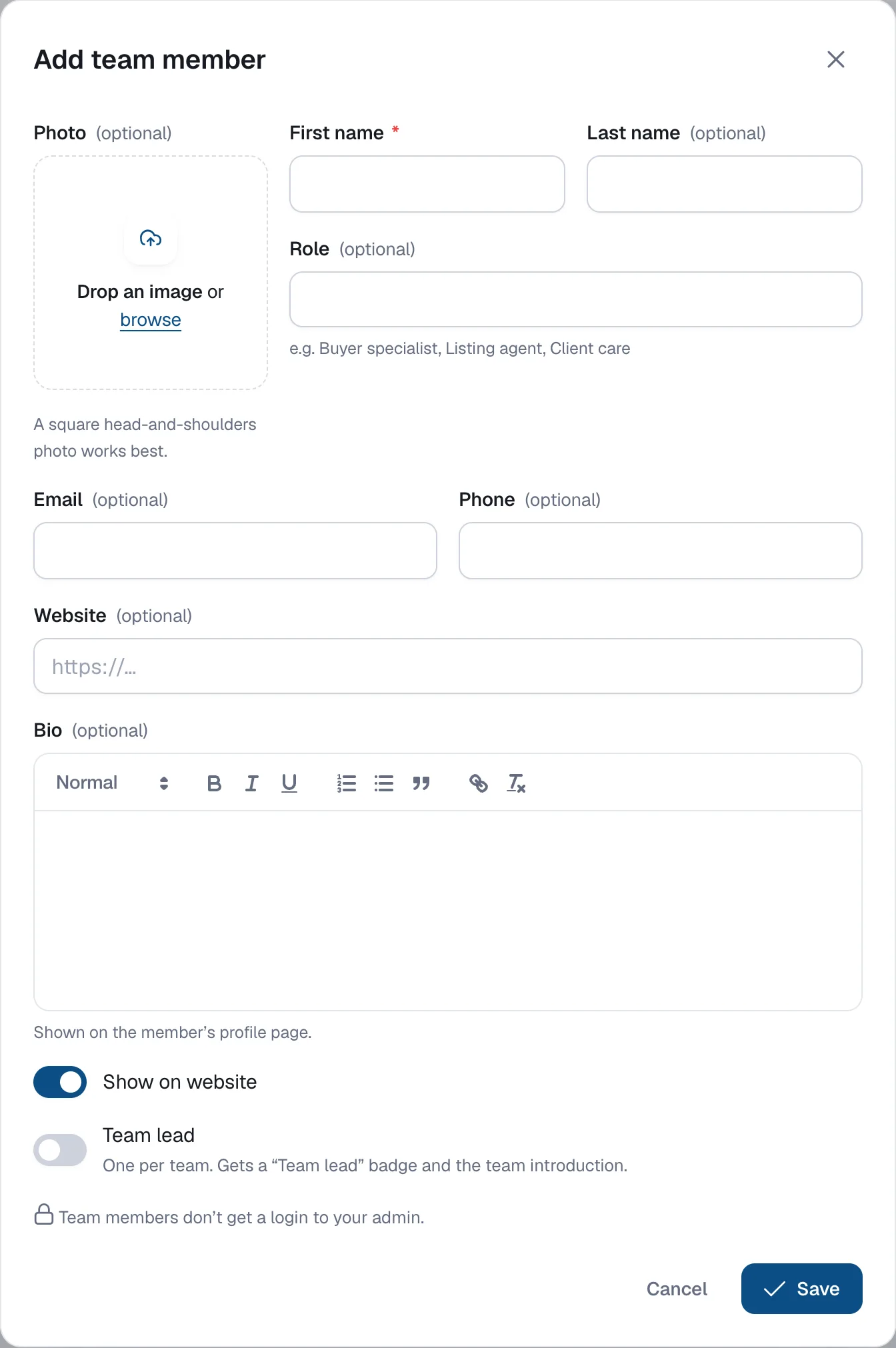
Click Add team member at the top right. The Add team member dialog opens.
Enter their details
Enter the First name (required) and, optionally, Last name, Role (e.g. Buyer specialist, Listing agent, Client care), Email, Phone and Website. Upload a Photo: a square head-and-shoulders photo works best.
Add a bio
Write a short Bio. It’s shown on the member’s profile page.
Save
Keep Show on website switched on and click Save. The new member appears in your list and on your website.
Good to know
- To change someone’s details later, click the pencil icon on their row.
- The bin icon deletes a member for good. To take someone off your website for now, hide them instead: see How to hide a team member.
- Mark one person as Team lead to give them a badge and show your team introduction: see How to set a team lead.
Questions
Do team members get a login to my admin?
No. Team members don’t get a login to your admin; you manage their profiles yourself.
How many team members can I add?
Up to 200, on every plan.
How do I put them in a different order?
Drag them on the Team page or use the up and down arrows. See How to change the order of your team members.