
How to change your website template
Go to Website, then Template, click Use on the template you like and confirm; your content, logo, listings, blog, pages and menus all come along, and you can undo the change.
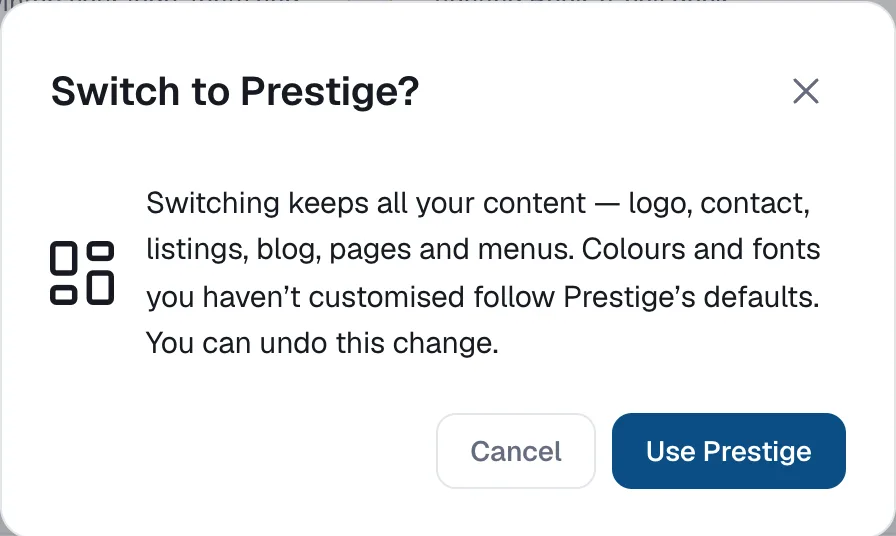
Switching templates keeps all your content — logo, contact, listings, blog, pages and menus. Colours and fonts you haven’t customised follow the new template’s defaults.
Steps
Open Template
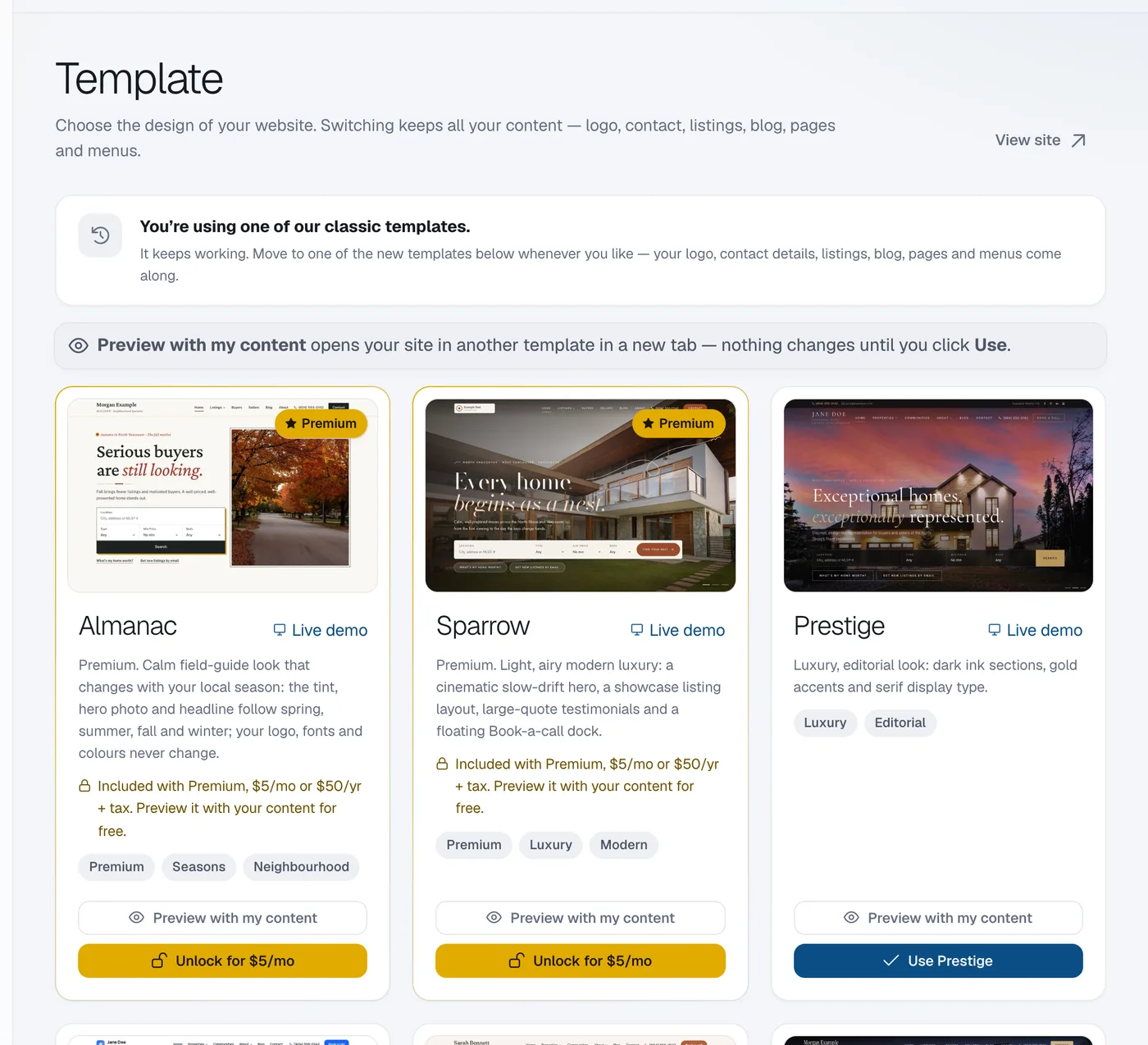
Open Website in the menu and click Template.
Look before you switch
Click a template’s picture for its live demo, or Preview with my content to see your own website in it. See How to preview a template with your own content.
Click Use
Click Use under the template, for example Use Collective.
Confirm
In Switch to …? click Use again. Your website changes straight away.
Questions
Can I go back?
Yes. Click Undo last change at the top of the Template page. See How to undo a template change.
Why does a template have an Unlock button?
It’s a premium template. Premium templates need the Premium add-on on a paid plan. See How to get Premium templates and the Seasonal look.