
How to update the contact details on your website
Go to Website, then Branding, change your display name, title, public email, public phone and office address under Contact details, and click Save contact details.
Your contact details are shown in your website’s header, footer and contact page. They are separate from your sign-in details under Profile.
Steps
Open Branding
Open Website → Branding and scroll to Contact details.
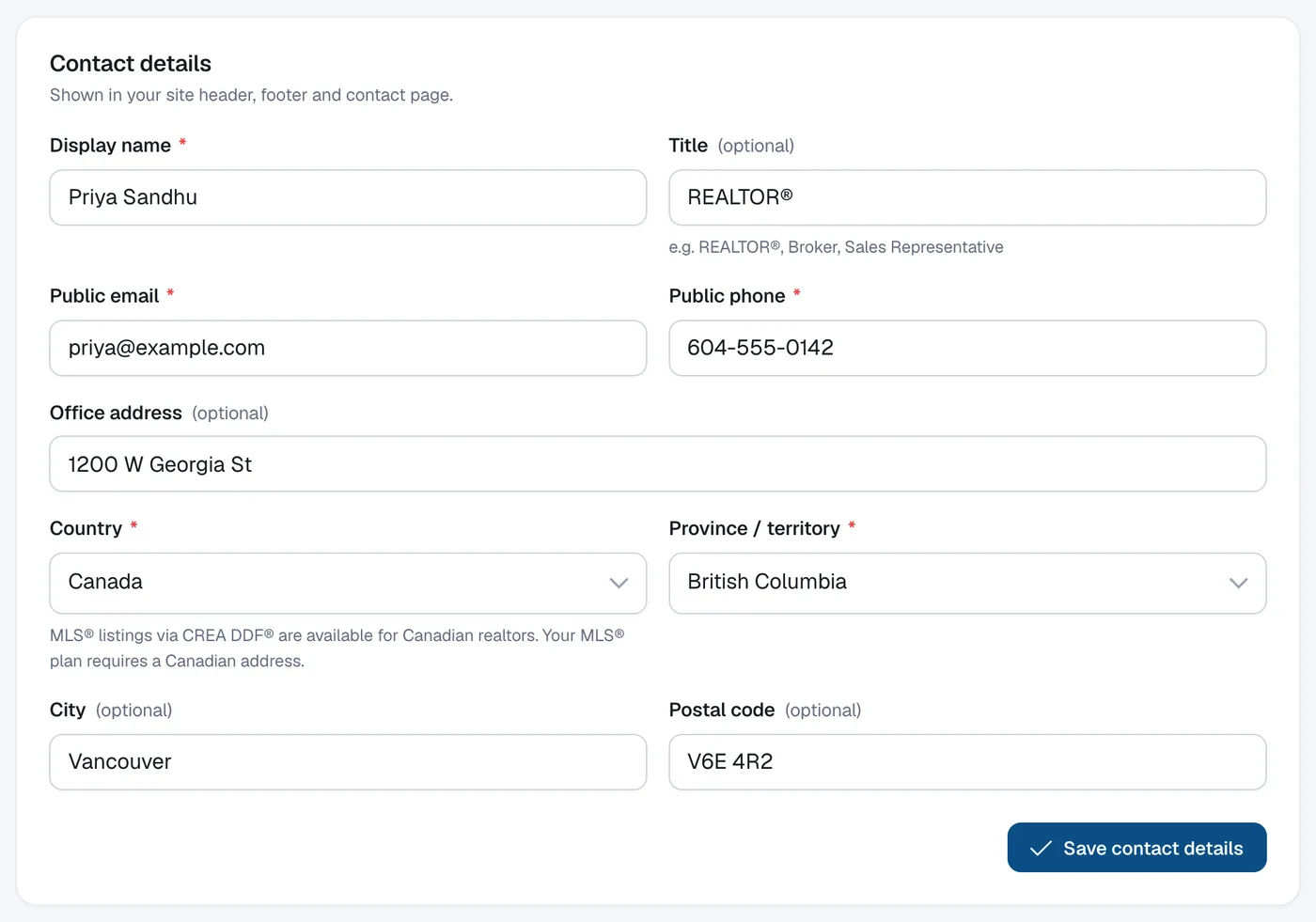
Edit the details
Update the Display name (or Company name for builders), Title (e.g. REALTOR®), Public email, Public phone, Office address, City and postal code.
Save
Click Save contact details.
Add social links (optional)
Under Social links, paste your profile addresses or usernames and click Save social links. Icons appear in your website’s header and footer.
Questions
Where do enquiries go?
To your Public email, and to Leads in your admin.