How to change your logo, colours and fonts
Go to Website, then Branding, upload your logo, pick a primary and accent colour and a font pairing under Look & feel, then click Save branding.
Your branding is applied to whichever template you use. Changes preview instantly and go live when you save.
Steps
Open Branding
Open Website in the menu and click Branding.
Upload your logo
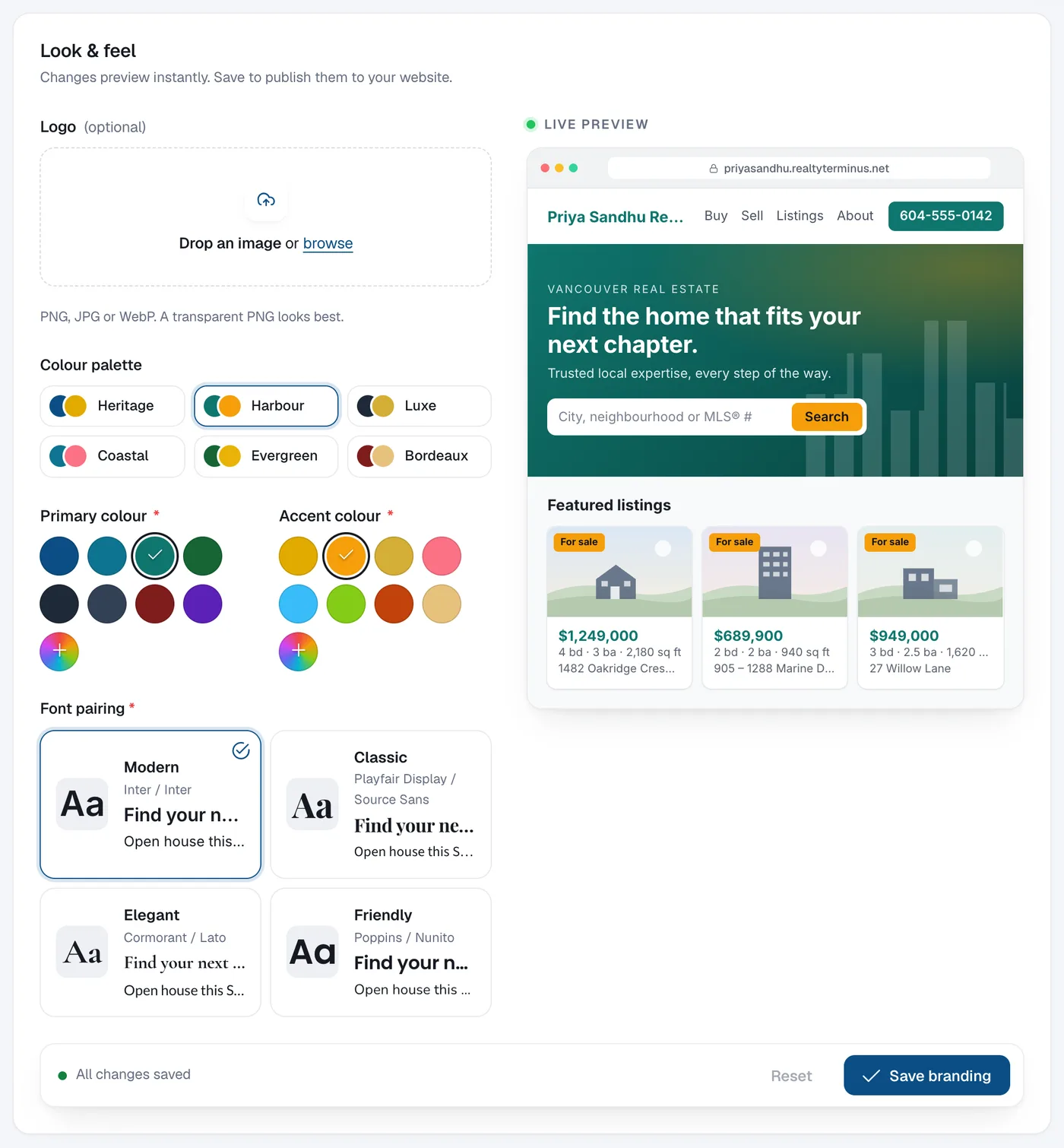
Under Look & feel, click Upload logo next to Logo. PNG, JPG or WebP; a transparent PNG looks best. No logo yet? Use Use my name as a logo further down the page.
Pick colours and fonts
Choose a Primary colour and an Accent colour, and a Font pairing. Click Reset to template defaults to go back to the template’s own look.
Save
Click Save branding to publish the changes to your website. Reset undoes unsaved changes.
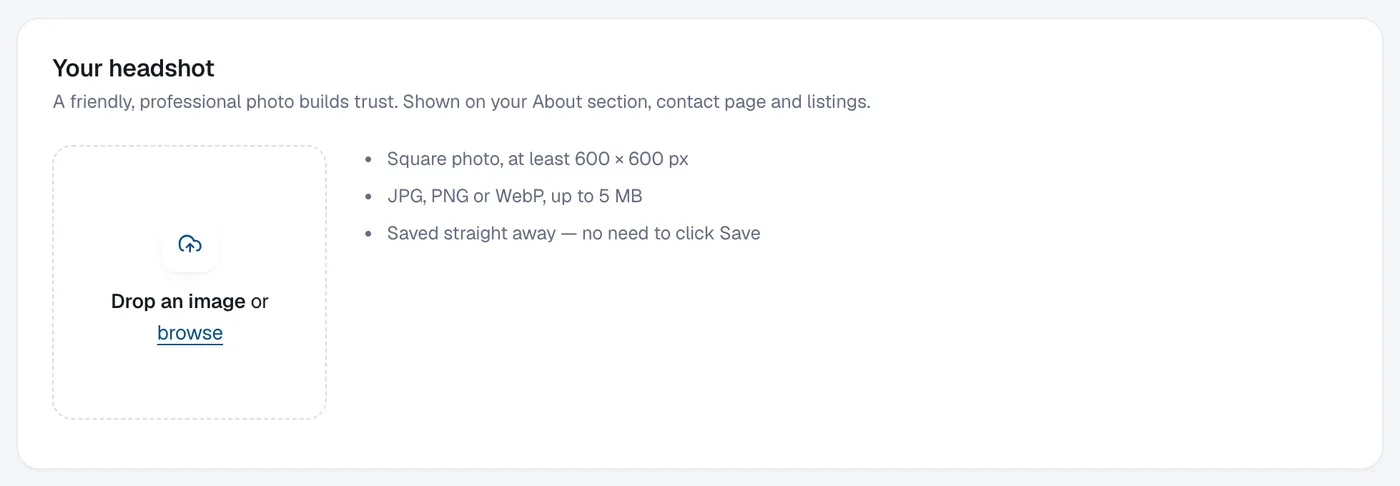
Add your headshot (REALTOR® accounts)
Further down, under Your headshot, click Upload headshot: a square photo of at least 600 × 600 px, up to 5 MB. It saves straight away.