
How to add partner logos to your website footer
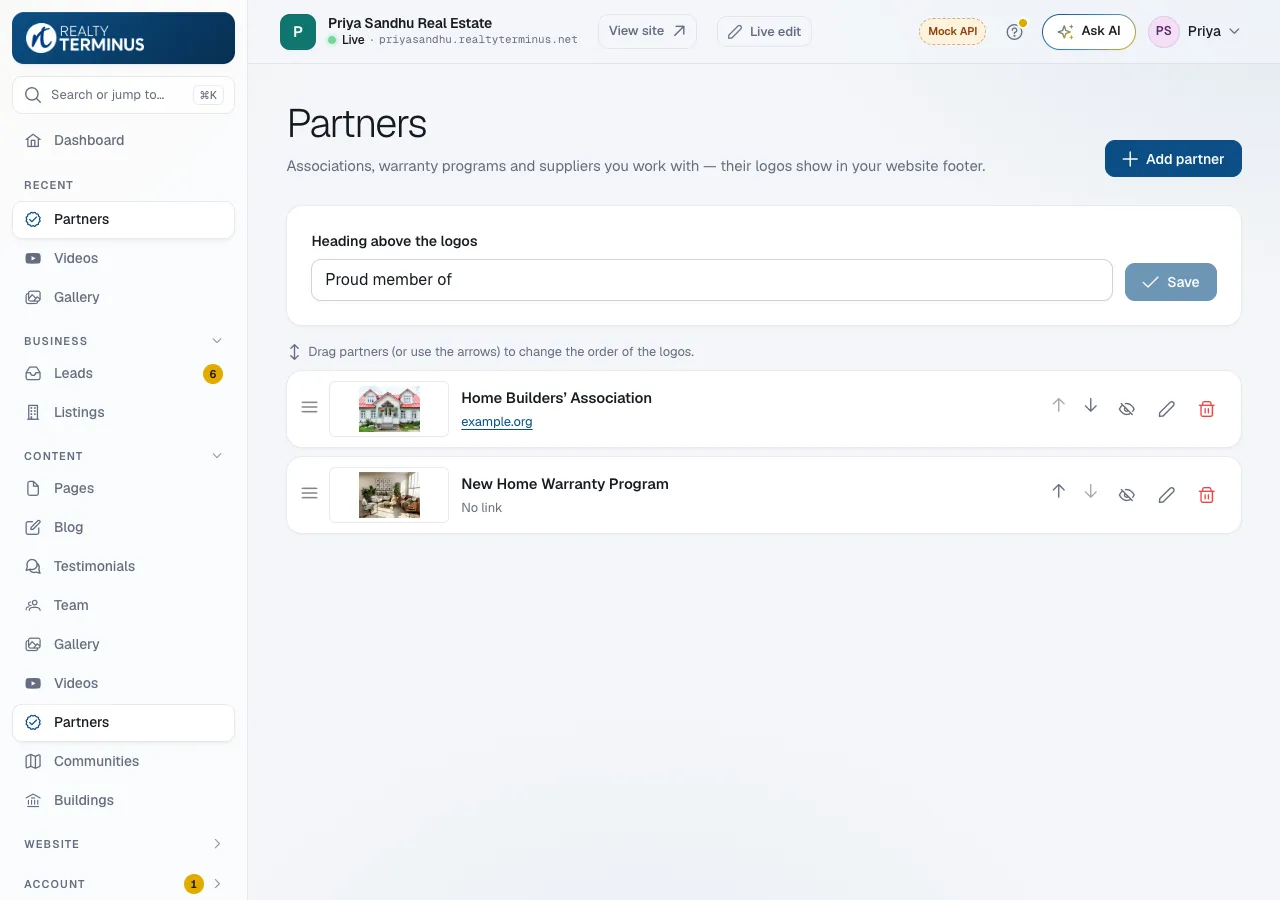
In your RealtyTerminus admin go to Content, then Partners, click Add partner, upload the logo, enter the name and an optional link, and click Save. The logos show in the footer of every page.
Show the associations, warranty programs, safety certifications and suppliers you work with. Their logos appear in a strip in your website footer, each linking to the partner’s website if you add a link.
Steps
Click Add partner
Click Add partner. Upload the Logo (a transparent or white background works best), enter the Name and, optionally, a Link to their website.
Save
Keep Show on website on and click Save. The logo appears in your website footer.
Order and heading
Drag partners into order (or use the arrows). Change Heading above the logos — for example “Proud member of” — and click Save.
Good to know
- Logos are shown on a white tile, so dark and light logos both stay readable.
- Removing a partner only takes it off your website list.
Questions
How many logos can I show?
Up to 24.
Can I take a logo off without deleting it?
Yes. Click the eye icon on its row to hide it; click it again to show it.