
How to add YouTube videos to your website
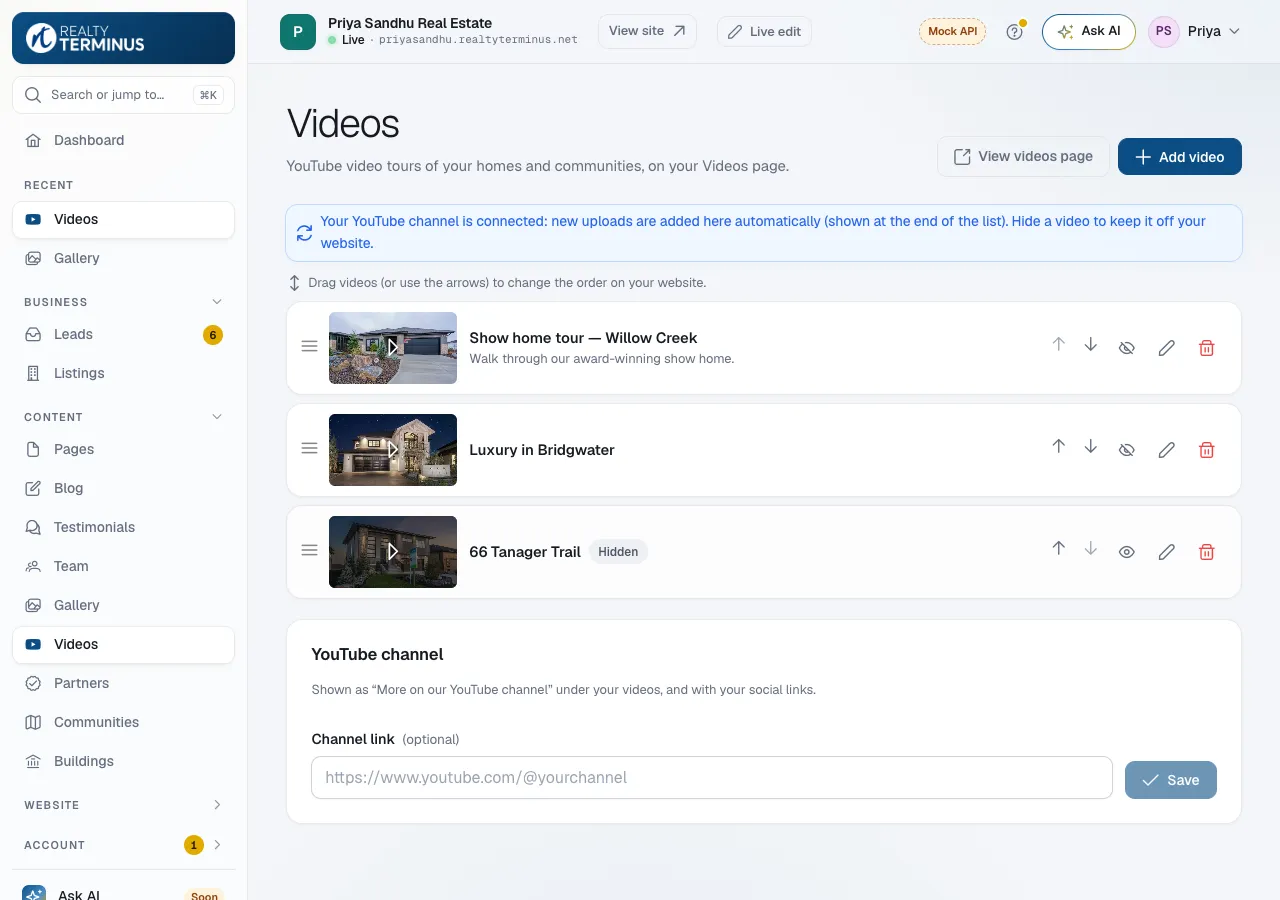
In your RealtyTerminus admin go to Content, then Videos, click Add video, paste the YouTube link, enter a title and click Save. Videos show on your website’s Videos page in the order you set.
The Videos page lists your YouTube videos — home tours, community walkthroughs, client stories — each with its title and description. Videos only load when a visitor presses play, so the page stays fast.
Steps
Click Add video
Click Add video at the top right and paste the YouTube link (for example https://www.youtube.com/watch?v=… or https://youtu.be/…). A preview of the video appears.
Add a title and description
Enter a Title (required) and an optional Description, keep Show on website on and click Save. New videos go to the top of your list.
Set the order
Drag videos into the order you want, or use the up and down arrows. The order is saved straight away.
Link your channel
Under YouTube channel, paste your Channel link and click Save. Your Videos page then shows a “More on our YouTube channel” button. Add a Videos link to your menu in Website → Navigation.
Good to know
- Only YouTube videos that are public or unlisted play on your website.
- Your YouTube channel link is also shown with your other social links (Website → Branding).
Questions
Can I hide a video without deleting it?
Yes. Click the eye icon on its row. Hidden videos stay in your list and come back with one click.
My channel’s new videos appear on their own — why?
If your YouTube channel is connected, new uploads are added to your list automatically (at the end). To keep one off your website, hide it rather than deleting it — a deleted video comes back while it’s on your channel.
Can I add Vimeo videos?
The Videos page is for YouTube. You can add YouTube or Vimeo links to your gallery instead: see How to add photos to your gallery.