
A profile for everyone
Photo, title, phone, email, website and a bio for each member. Each one gets a profile page of their own.
Clients want to know who they’ll work with. Add each team member once, with a photo, title, phone, email and a short bio, and your website shows them on a team page, on their own profile page and on your home page. Every plan, including Free.
30 days free, no credit card.
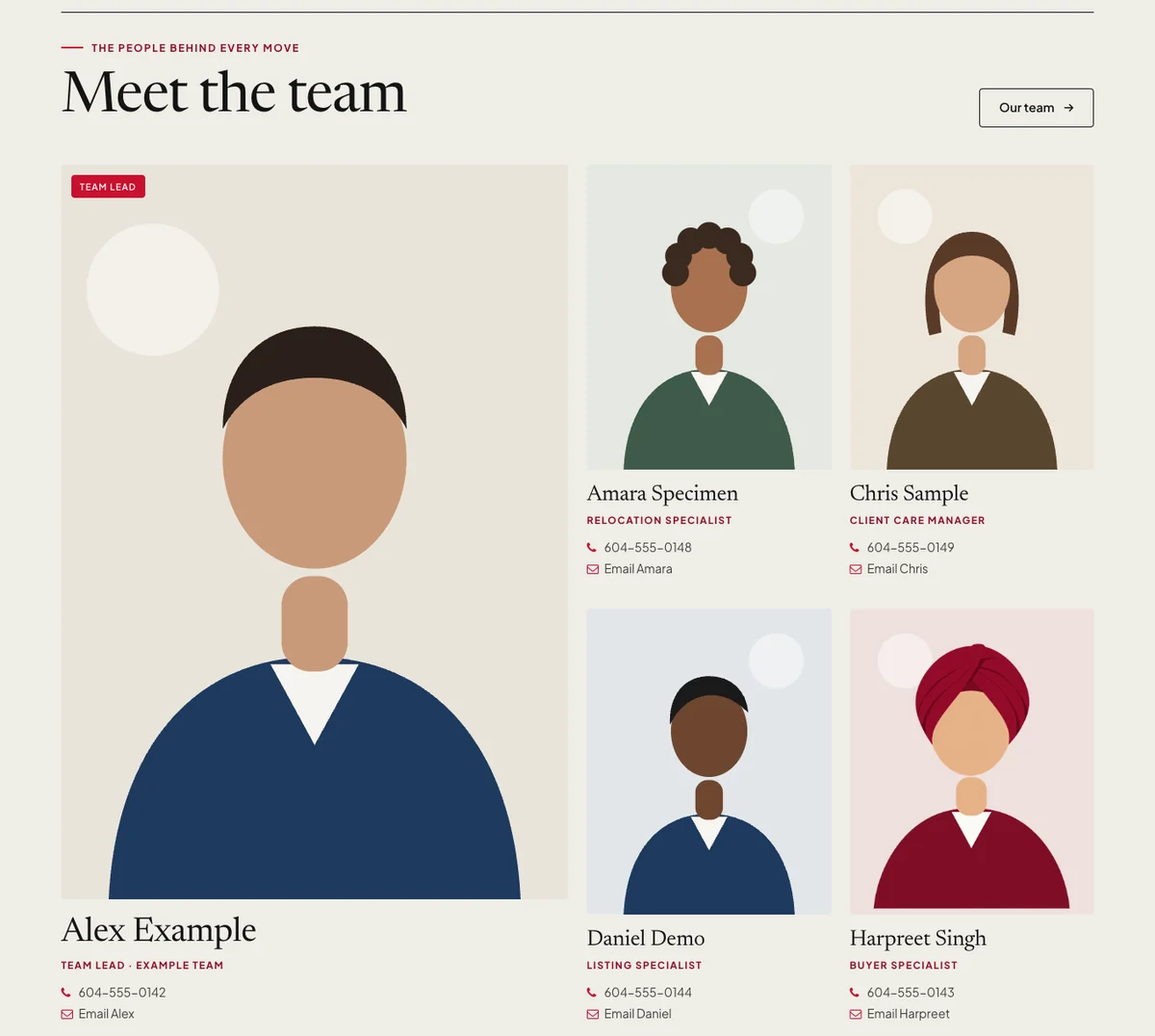
Photo, title, phone, email, website and a bio for each member. Each one gets a profile page of their own.
Mark one person as the team lead and write a short team intro. It shows at the top of your team page.
Drag members into the order you want. Your website follows it everywhere.
Someone on leave? Hide them from your website and bring them back later, with nothing to retype.
In your admin, go to Content, then Team, and click Add member.
Upload a photo, then add their title, phone, email, website and a short bio.
Drag members into order and pick your team lead. Your website updates when you save.
A section with your team lead first and the rest in your order, on templates that have one.
Everyone on one page, with the team intro at the top and a card for each member.
Photo, title, bio, phone, email and website, so clients can reach the right person.
Team members don’t need an account or a password. You keep their details up to date from your own admin.
Screenshots from our demo websites. Names and contact details are examples.

Every plan, including the 30-day free plan.
On your team page, on a profile page for each member, and in a “Meet the team” section on your home page on templates that have one.
No. Team members are shown on your website only. You manage their details from your own admin.
Yes. Drag members into the order you want and save. The team lead and the order show the same way on every page.
No, one at a time. Making someone else the lead moves the mark and the team intro to them.
Yes. Hidden members disappear from your website, and their details stay in your admin until you show them again.
Start free for 30 days — no credit card. Add your team from day one.