
Change your real estate website yourself: a Live edit walkthrough
No developer, no ticket, no waiting. Ten edits you can make this week, and exactly how to make them.
Short answer
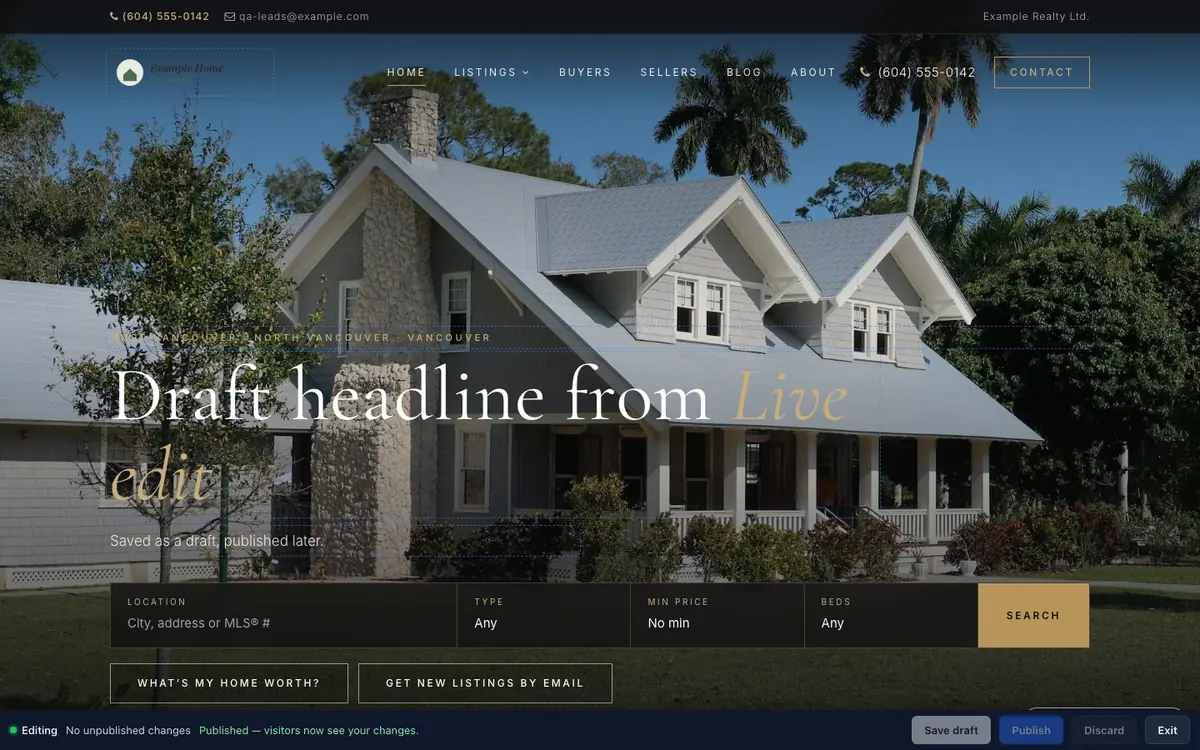
Open Live edit from the top of your admin, click any outlined headline, paragraph or photo on your website, change it, then click Save draft (private) or Publish (live straight away). Listings, colours and settings stay in the admin, where they have proper forms.
A realtor website goes stale quietly. The headline still talks about spring. The stats say “40 homes sold” when it’s been 55 for months. The headshot is two haircuts ago. None of it is hard to fix — the problem is that fixing it used to mean finding the right settings page, or emailing someone and waiting. Live edit is how you fix it yourself, in the time it takes to notice it. This walkthrough shows exactly how, then gives you ten edits worth making this week.
Before you start
- Live edit is on every RealtyTerminus plan, including the free 30-day plan, and works with every template.
- It edits words and photos where they sit on your website. Listings, colours, fonts and settings stay in the admin, where they have proper forms.
- Nothing goes live until you click Publish.
Step 1: Open Live edit
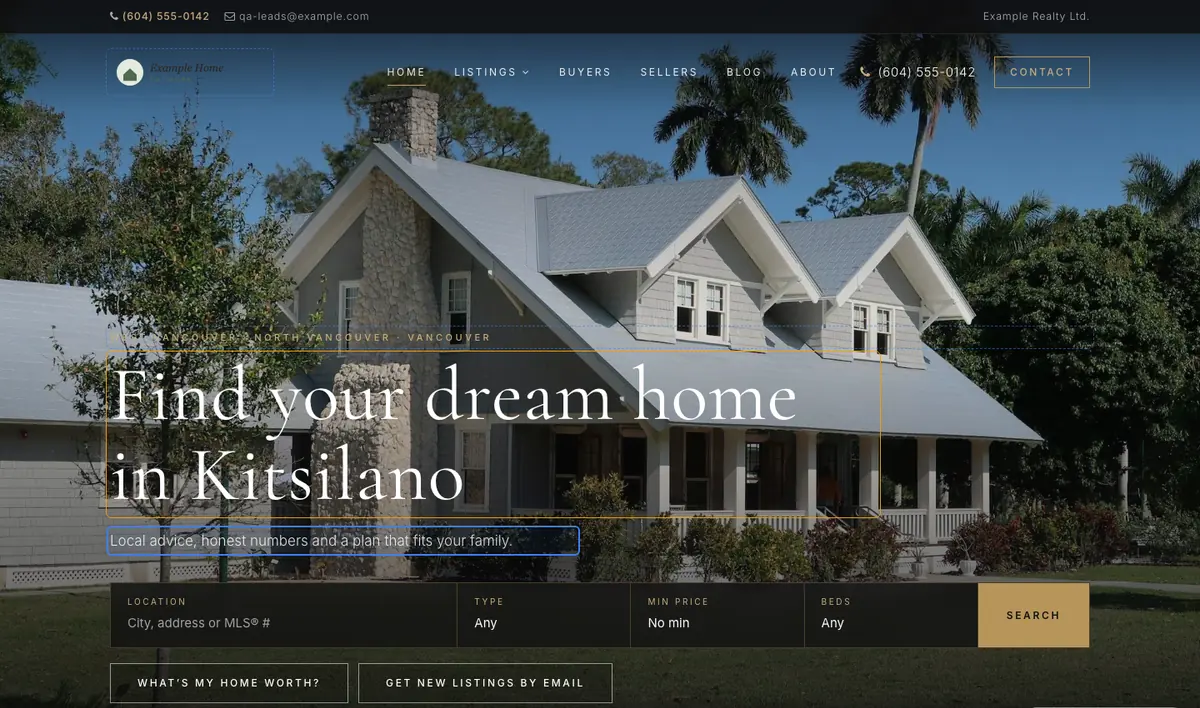
Sign in to your admin and click Live edit at the top, next to View site. You’ll also find it on Branding and in the page and post editors. Your website opens in a new tab with every editable part outlined.

Step 2: Click and type
Click a headline or paragraph and start typing, just like a document. Edit your home-page headline, the small line above it, the sub-headline, your intro, your bio, the numbers in your stats, and the titles and text on your pages and blog posts.
Step 3: Change a photo
Click a photo and choose Change photo to replace your home-page background, intro photo, headshot or logo. Use a large, sharp image; landscape for backgrounds, a head-and-shoulders crop for your headshot.
Step 4: Save draft or Publish
The toolbar at the bottom of the page always shows where you stand:
- Save draft keeps your changes private. Visitors keep seeing your current site. Drafts are saved with your account, so you can start on the office computer and finish at home — the admin button changes to Continue Live edit.
- Publish puts the changes live for every visitor, straight away.
- Discard throws the draft away; your site stays exactly as it was.

If someone changes the same text in the admin while your draft is waiting, Live edit notices and asks you before it publishes, so nobody’s work is overwritten by accident.
Ten edits worth making this week
- A seasonal headline. “Thinking of selling this spring?” in March; “Settle in before the school year” in July; “Buying in a quieter market” in November.
- Your stats. Update homes sold, years in the business or reviews. If a number makes a claim, keep the basis handy — regulators expect it.
- Your intro. Say who you help and where, in one sentence. “I help first-time buyers in Surrey and Langley find homes they can afford.”
- Your headshot. Recent, well lit, looking at the camera.
- The home-page photo. A street or view in your actual area beats a generic skyline.
- Your bio. Add languages you speak, communities you serve and why you do this work.
- A local blog post. Fix a typo or add an update to your best-performing post; it tells Google the page is maintained.
- Your “Selling” page. Add what you do in the first week of a listing. Sellers want specifics.
- Calls to action. Make sure every page ends with one clear next step: call, book, or get a home valuation.
- A festival or community greeting. Pair a warm headline with Festival greetings — see the festival marketing calendar for dates.
What to change in the admin instead
Some things need forms with more fields, so they stay in the admin:
- Listings — under Listings, including marking one as sold.
- Colours, fonts and logo settings — under Website → Branding.
- Brokerage and licence details — under Website → Branding, Brokerage & licence.
- Menus and footer links — under Website → Navigation.
- Google titles and descriptions — under Website → SEO.
Make it a habit
The agents whose websites work aren’t the ones with the fanciest design. They’re the ones whose sites look like someone is home. Put ten minutes in your calendar on the first Monday of each month: open Live edit, read your home page as a stranger would, change what’s out of date, publish. That’s it.
New to it? Read the step-by-step help article, or see why we built Live edit.
Questions
Which plans include Live edit?
Every RealtyTerminus plan, including the 30-day free plan, on every template.
Will visitors see my half-finished changes?
No. Save draft keeps changes private until you click Publish.
Can I change listings in Live edit?
No. Listings, colours, fonts and settings stay in the admin, where they have proper forms with all the fields they need.
Can I start on one computer and finish on another?
Yes. Drafts are saved with your account, not in your browser, so the admin shows Continue Live edit wherever you sign in.
Can I undo a change?
Before you publish, Discard throws the draft away and your site stays as it was. After publishing, edit the text again and publish the corrected version.