
How to show your MLS® listings on your own website (step by step)
From “is my brokerage in DDF®?” to a Sold page that keeps your track record — in seven steps, most of them one-time.
Short answer
Check that your brokerage participates in CREA DDF®, find your CREA agent ID on your REALTOR.ca profile, choose a website plan that includes MLS® listings, enter and verify the ID, then add an MLS® search page to your menu and your board’s disclaimer. Your listings then arrive and stay up to date on their own.
Your listings are your best marketing. Buyers who find you through a sign or a referral will look you up, and seeing your current listings — with good photos, on your own website — tells them you’re active. The good news: in most of Canada you don’t need to retype anything. This guide walks through the steps for a Canadian REALTOR®, using CREA DDF®. The screens shown are from RealtyTerminus, but steps 1, 2 and 7 apply wherever you build your site.
Before you start
- You’re a REALTOR® and a member of CREA through your board.
- You’re in a province where your website provider supports MLS® listings. RealtyTerminus supports every province except Quebec and Manitoba.
- You know your brokerage’s name exactly as licensed — you’ll need it on the site anyway.
Not sure whether you need DDF® or IDX? Read CREA DDF® vs IDX first. In short: DDF® puts your own listings on your website; IDX is a board programme for searching many brokerages’ listings.
Step 1: Check that your brokerage participates in DDF®
DDF® is permission-based. Your brokerage decides whether to take part and can give its salespeople permission. Ask your managing broker or office administrator: “Are we opted in to CREA DDF®, and am I allowed to send my listings to my own website?” If the answer is no, you can still launch your site with listings you add yourself, and switch the feed on later.
Step 2: Find your CREA agent ID
Your CREA agent ID is the number on your REALTOR.ca profile. It’s how your listings are matched to you, so copy it carefully. If you can’t find it, your board or brokerage can tell you.
Step 3: Choose a plan that includes MLS® listings
On RealtyTerminus that’s the MLS plan (CA$126/yr). You can start on the free 30-day plan to build the site first, and choose MLS in Account → Billing when you’re ready. The MLS plan also includes listing search and map pages, and higher limits than Basic.
Step 4: Enter and verify your agent ID
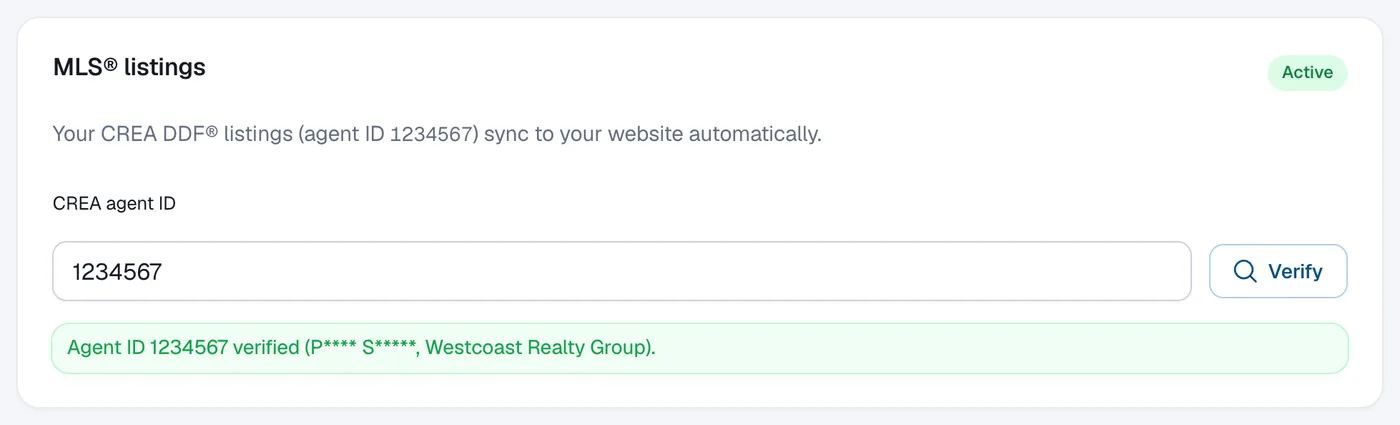
- In your admin, go to Website → Branding and scroll to MLS® listings. The dashboard item Add your CREA agent ID takes you there too.
- Type your CREA agent ID and click Verify.
- If the ID is found and matches you, it’s verified straight away and your listings start arriving. If it needs a manual check, we confirm it within 5 business days.
Step 5: Let visitors search
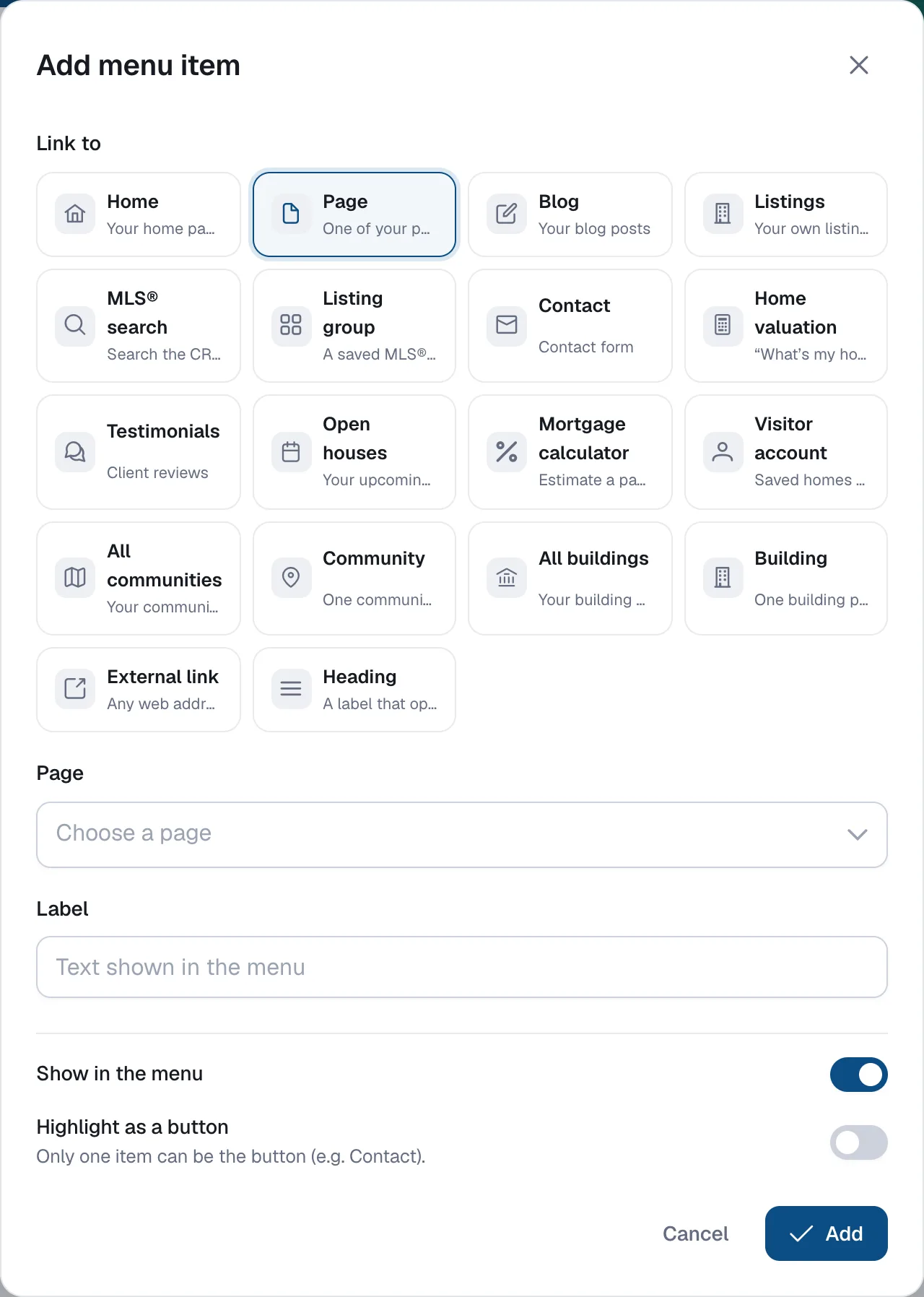
Your own listings get their own page automatically. To let visitors search MLS® listings more widely, add a search page to your menu: go to Website → Navigation, click Add item, choose MLS® search and pick Map search or List. Visitors can then search by location, type, price, beds and baths.
Step 6: Add your board’s disclaimer
Boards usually require a disclaimer and the MLS® or REALTOR® logos to be displayed with listing content. In Website → Branding, the Listings disclaimer panel adds your board’s disclaimer text and reciprocity logo to every page and listing page. Ask your board for its current wording.
Step 7: Decide what happens when a listing sells
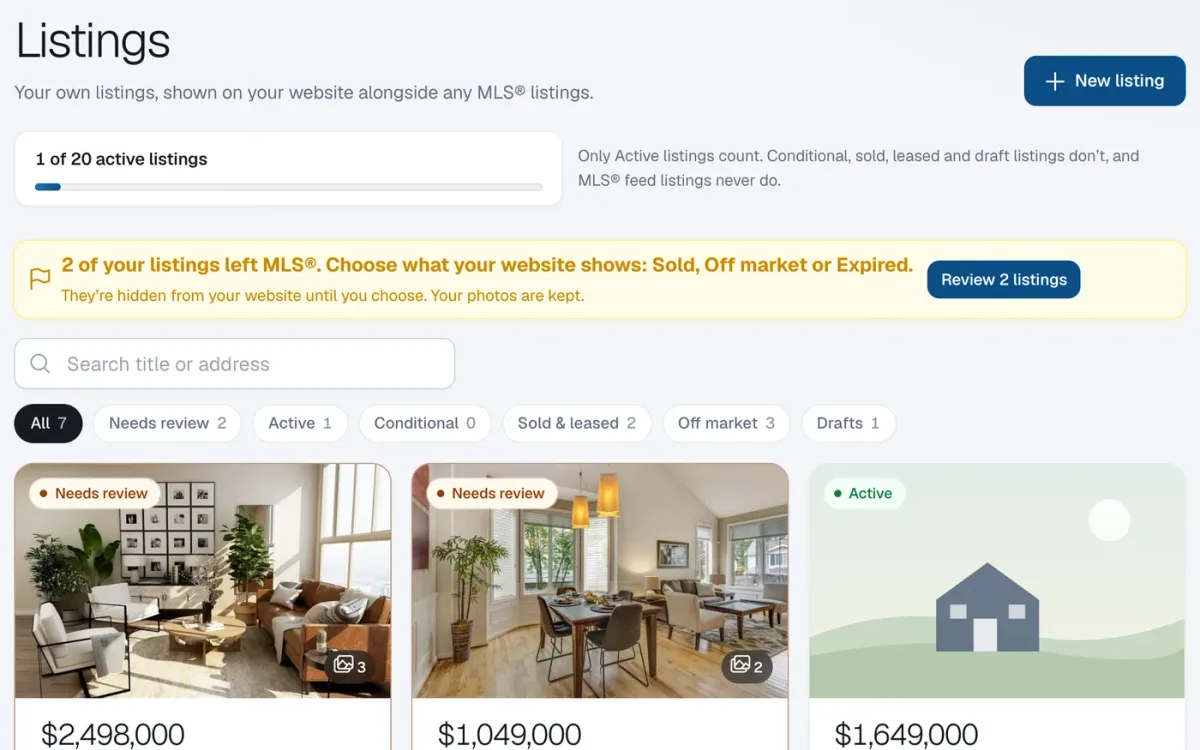
Listings leave the feed when they sell, expire or come off the market. Many websites simply delete them — and you lose your best proof of results. On RealtyTerminus the listing shows as Needs review in your admin instead. Choose:
- Mark as sold — it returns to your website with a Sold label and appears on your Sold page. The sale price is never shown.
- Off market — keep the page online with an Off market tag, or take it off your website.
- Expired or hide it — it comes off your website.
Old links to a sold or kept-online listing keep working, so people arriving from Google or an old email still land on it. And if the property comes back on MLS®, it shows as active again.
Common problems and fixes
“We couldn’t confirm my agent ID.”
Check the number on your REALTOR.ca profile and try again. If it still fails, send a request from Help & support with the topic Listings & MLS®.
“A listing is missing.”
Confirm with your brokerage that the listing is set to go to DDF®. Brokerages control which channels each listing is sent to.
“I want to change a description.”
MLS® listings can’t be edited on your website; they mirror MLS®. Update the listing through your board and the change follows.
“I have exclusives that aren’t on MLS®.”
Add them under Listings → New listing. Manual listings work on every plan and sit alongside your MLS® listings.
Keep it compliant
Your website is advertising. Show your brokerage name on every page, keep listing information current, and only show other brokerages’ listings through an approved feed. Our new realtor website checklist covers what BCFSA, RECO and RECA expect, with links to their guidance.
Questions
Where do I find my CREA agent ID?
It’s the number on your REALTOR.ca profile. Your board or brokerage can also tell you.
How long until my listings appear?
On RealtyTerminus, if the ID is found and matches you, it’s verified straight away and your listings start arriving. If it needs a manual check, we confirm it within 5 business days.
Can I edit an MLS® listing on my website?
No. MLS® listings come from the feed and stay in step with MLS®. To change one, update it on MLS® through your board. You can add your own listings (exclusives, past sales) by hand on every plan.
What if my brokerage doesn’t participate in DDF®?
You can still have a website with listings you add yourself, on the Basic plan. Ask your managing broker whether the brokerage will opt in.
Do MLS® listings count toward my listing limit?
Not on RealtyTerminus. Only listings you add yourself count.