
How to add your website to Google Search Console and Bing
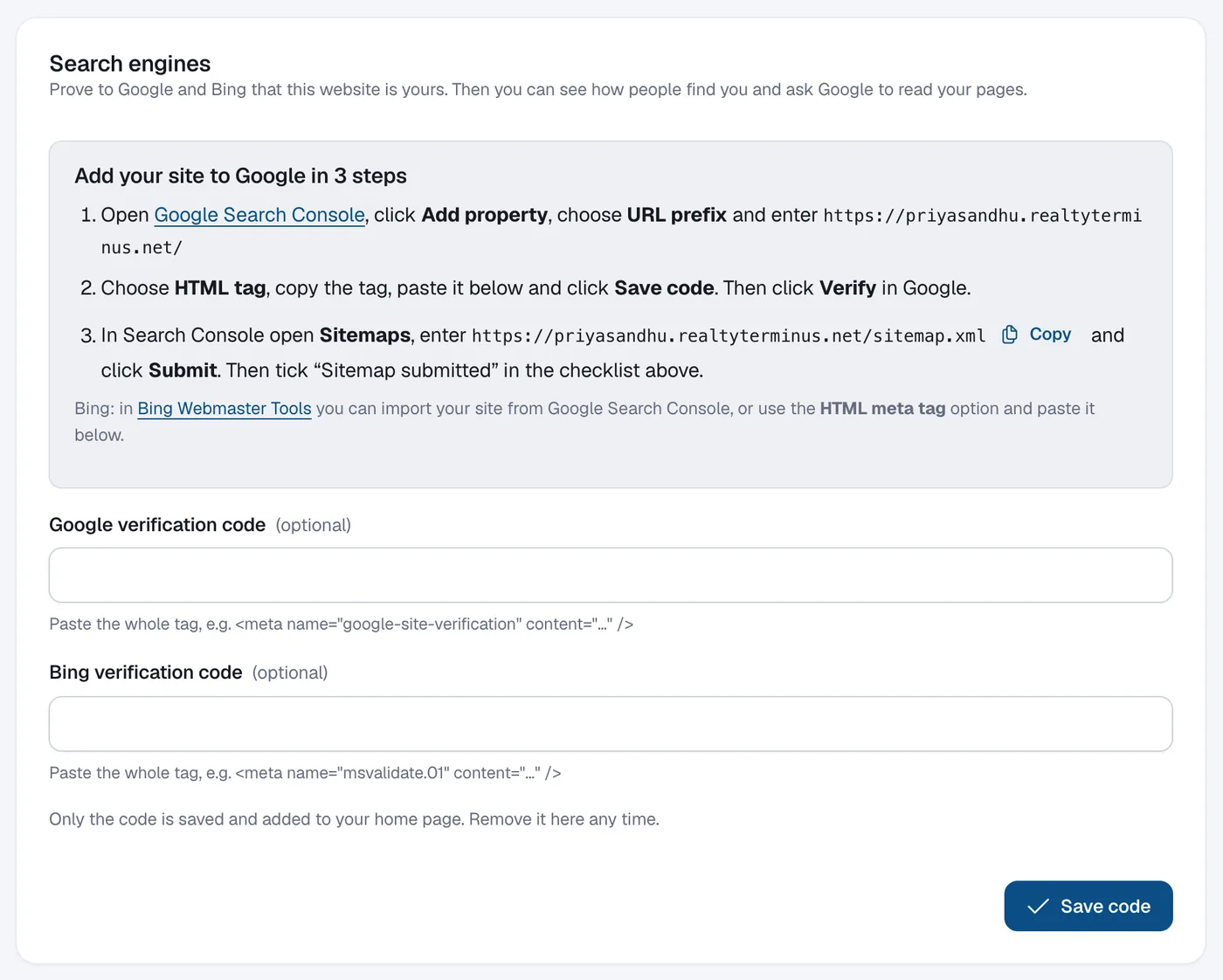
In Google Search Console add a URL prefix property, choose HTML tag, paste the tag in Website, then SEO, click Save code and Verify, then submit your sitemap address.
Verifying your website proves to Google and Bing that it’s yours. Then you can see how people find you and ask Google to read your pages. The Search engines panel in your admin has the same steps with your own web address filled in.
Steps
Add a property in Google Search Console
Open Google Search Console, click Add property, choose URL prefix and enter your website address exactly as shown in your admin.
Copy the HTML tag
Choose HTML tag and copy the whole tag.
Paste it in your admin
Go to Website → SEO, paste it into Google verification code and click Save code. Only the code is saved and added to your home page.
Verify in Google
Back in Search Console, click Verify.
Submit your sitemap
In Search Console open Sitemaps, paste the sitemap address from your admin (use the Copy button) and click Submit. Then tick I did this next to Sitemap submitted to Google in your SEO checklist.
Bing (optional)
In Bing Webmaster Tools import your site from Google Search Console, or choose HTML meta tag, paste it into Bing verification code and click Save code.
Questions
Do I need to do this again after connecting my own domain?
Yes. Search Console works per web address, so add a property for your new domain and submit its sitemap.