
Where do I find the leads from my website?
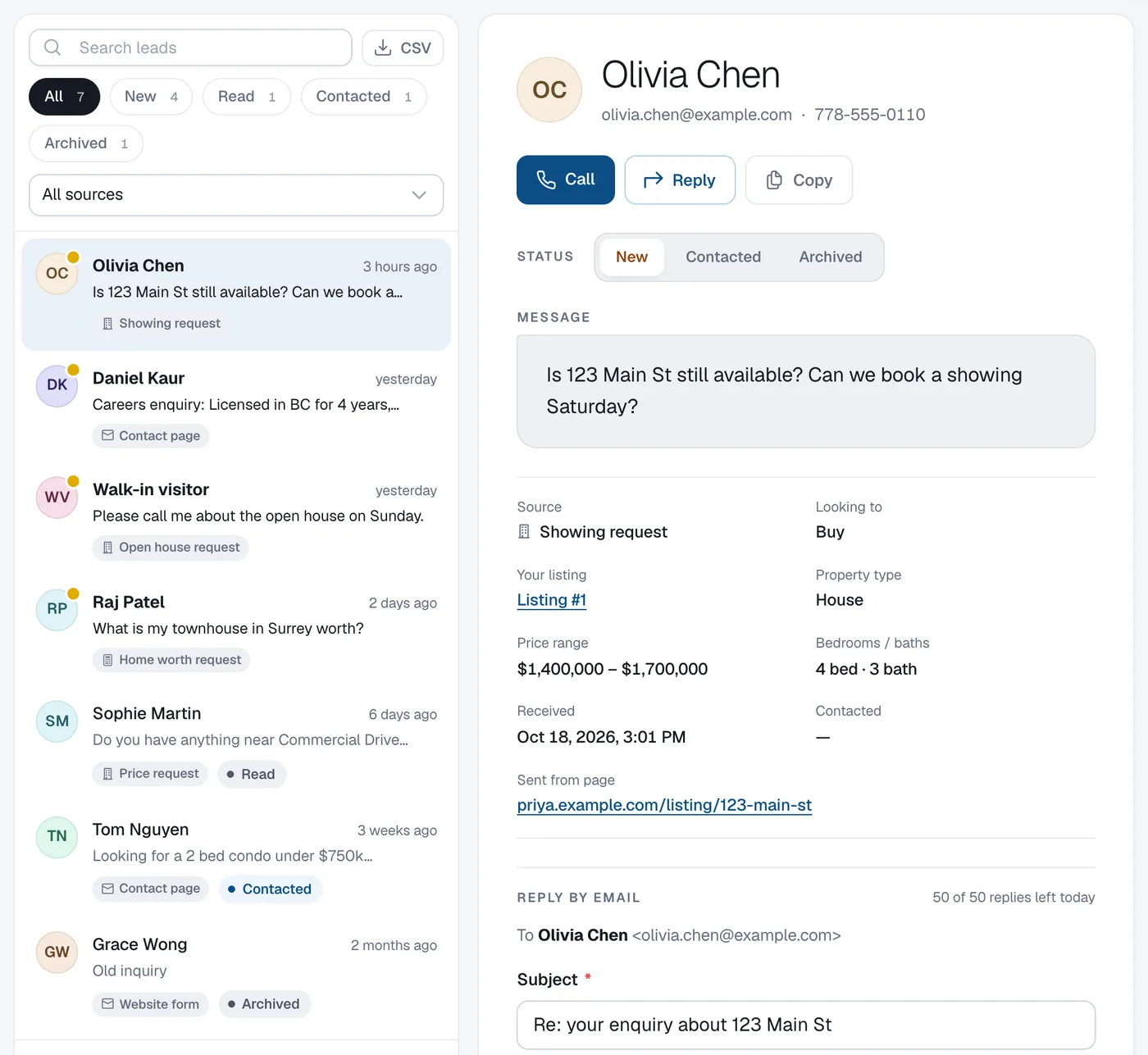
Every enquiry from your website’s contact, listing and home valuation forms lands in Leads in your admin, where you can search, filter, contact the person and track follow-up.
Leads is your inbox. New enquiries have a dot next to them, and the dashboard shows Leads this week and your Recent leads.
Steps
Open Leads
Click Leads in the menu (under Business).
Find a lead
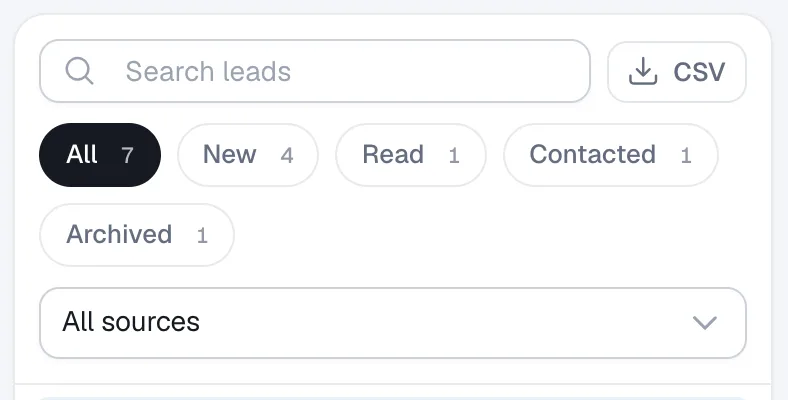
Type in Search leads to search names, emails, phone numbers and messages. Use the status chips (All, New, Contacted, Archived) and the All sources menu (Contact form, Listing inquiry, Home valuation) to narrow the list.
Open the lead
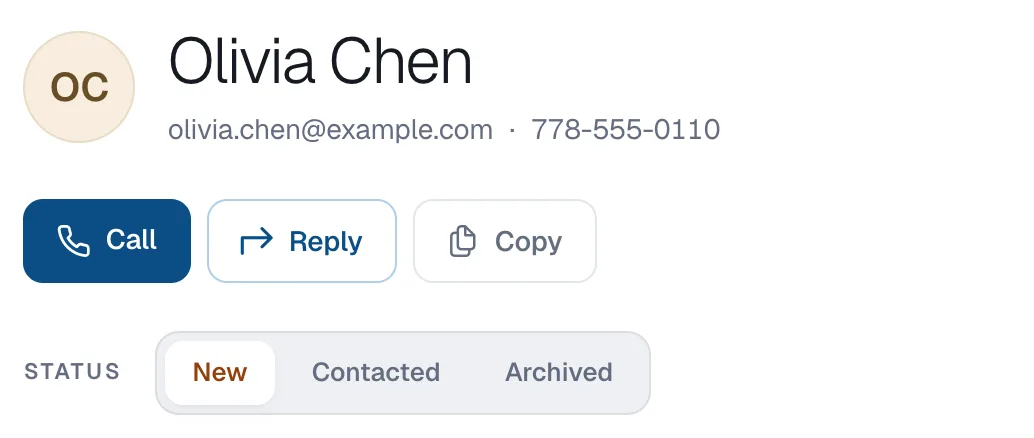
Click a lead to see their message, contact details, the listing they asked about and the page they sent it from. Use Call, Reply or Copy to get in touch.
Set the status
Under Status click Contacted once you’ve been in touch, or Archived when you’re done. Add Private notes to remember details such as “pre-approved”.
Questions
Do I also get leads by email?
Yes, new enquiries are emailed to the contact email on your website as well. Leads keeps them all in one place.
Where are people who signed up for listing alerts?
Choose Subscribers (alerts) in the source menu. See How to see who signed up for listing alerts.